# The 12 Best Collaboration Tools for Remote Teams in 2025
# Choosing Your Remote Stack: More Than Just Another App
The right software defines how remote teams work. A poorly chosen tool creates friction, adds meetings, and slows decisions. A well-integrated stack removes roadblocks, making async work feel natural and live calls more productive. The goal is to build a digital environment that supports focus, not one that constantly demands attention with endless notifications and confusing interfaces. Finding the best collaboration tools for remote teams is less about adopting the latest trend and more about solving specific operational problems.
This guide moves beyond generic feature lists. It focuses on the practical application of each tool, from project management and asynchronous communication to video conferencing and digital whiteboarding. You'll find specific use cases and honest assessments of limitations to help you decide what's right for your workflow. As you begin exploring options, a comprehensive overview of the top remote team collaboration tools (opens new window) can serve as an excellent starting point for understanding the landscape.
We'll dissect the market leaders like Slack, Microsoft Teams, and Asana, and look at how they fit together. This list isn't about features for features' sake. It's about finding the specific tools that solve real remote work problems—from cluttered communication and missed deadlines to the simple, universal annoyance of not finding the mute button fast enough. Each entry includes screenshots and direct links to help you evaluate the options efficiently. We'll cover how to assemble a setup that actually helps your team get work done, no matter where they are. We’ll even explore how utilities like MuteDeck can bridge the gaps between platforms, providing a unified control layer over your entire meeting stack.
# 1. MuteDeck
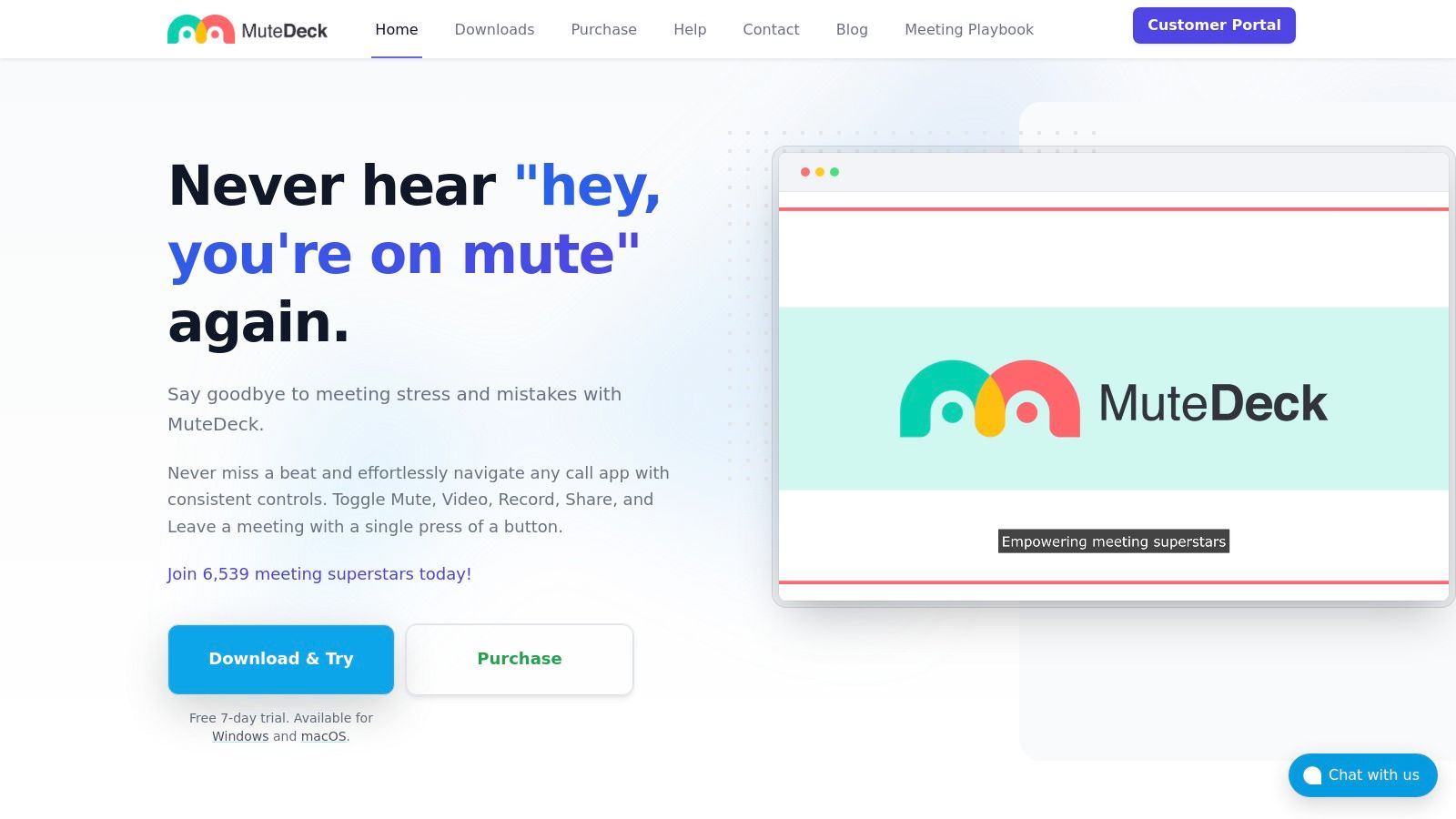
MuteDeck solves a universal problem for remote professionals: the chaos of managing controls across different video conferencing platforms. Instead of fumbling for the mute, camera, or screen share buttons in Zoom, then relearning their locations in Microsoft Teams or Google Meet, MuteDeck provides a single, consistent interface that works everywhere. This simple utility streamlines your workflow, making it one of the best collaboration tools for remote teams who live in back-to-back meetings.
The core value is its unification of essential meeting commands. Whether you are starting a sales demo in Teams or joining a training session in Webex, your controls for mic, camera, sharing, recording, and leaving the call are always in the same place. This consistency reduces cognitive load and eliminates the awkward "you're on mute" interruptions that plague virtual collaboration.
# Key Capabilities and Use Cases
MuteDeck's power extends beyond its on-screen interface. It offers first-class support for hardware controllers like the Elgato Stream Deck (including the foot pedal), Loupedeck, and TouchPortal. This integration turns abstract software commands into tangible, physical buttons.
- For Power Users & Streamers: Assign meeting controls to your Stream Deck. A single button press can mute your mic, turn off your camera, and even send custom keyboard shortcuts to the active application, creating a powerful command center for live presentations.
- For Home Automation Enthusiasts: The accessible REST API allows you to connect MuteDeck to systems like Home Assistant. You could, for example, program your office smart light to turn red whenever your microphone is live, providing an unmissable visual cue to family members that you're in a meeting.
- For Multitaskers: The app provides instant, reliable visual status for your mic, camera, and recording status. This lets you confidently manage other tasks during a call, knowing your status at a glance without having to bring the meeting window to the front.
# Implementation and Access
MuteDeck operates as a desktop application for Windows and macOS. Setup involves granting necessary permissions, which takes a few minutes, and installing plugins for specific hardware if you use it. It offers a free 7-day trial to test its full functionality. The platform is known for its perpetual (lifetime) license option, which is a significant advantage over subscription-based models. Keep an eye out for promotions, such as the "HOLIDAYS24" code that offered a 35% discount.
The platform's strength is its focused utility. While some integrations (like Webex) are in beta and the experience is optimized for supported hardware, its ability to send shortcuts provides a fallback that works with almost any application, making it a flexible and indispensable tool for any serious remote professional.
Website: https://mutedeck.com (opens new window)
# 2. Slack
Slack is a channel-based messaging platform that centralizes team communication, effectively replacing internal email threads for many organizations. Remote teams use it as a digital headquarters for both real-time chats and asynchronous updates. Its main strength lies in organizing conversations into dedicated channels for specific projects, teams, or topics. This structure prevents information silos and makes conversations searchable.
Unlike competitors that may focus only on chat, Slack has built a massive ecosystem of over 2,600 integrations. You can connect it to project management tools like Jira or file storage like Google Drive, allowing notifications and actions to flow directly into your channels. This transforms Slack from a simple chat app into a central command center for your entire workflow.
# Key Considerations for Remote Teams
Practical Tip: To prevent notification fatigue, aggressively mute non-essential channels. Use the "Status" feature with a clear "Focusing" or "In a meeting" message to manage expectations for response times. This helps maintain work-life boundaries when your team is distributed across time zones.
- Best For: Teams needing a highly integrated communication hub to connect disparate software tools and streamline notifications. It is also ideal for organizations that require granular administrative controls over communication policies.
- Limitations: The constant stream of messages can become overwhelming without strict channel discipline and notification management. For small teams, the cost of paid plans can escalate quickly compared to more bundled solutions.
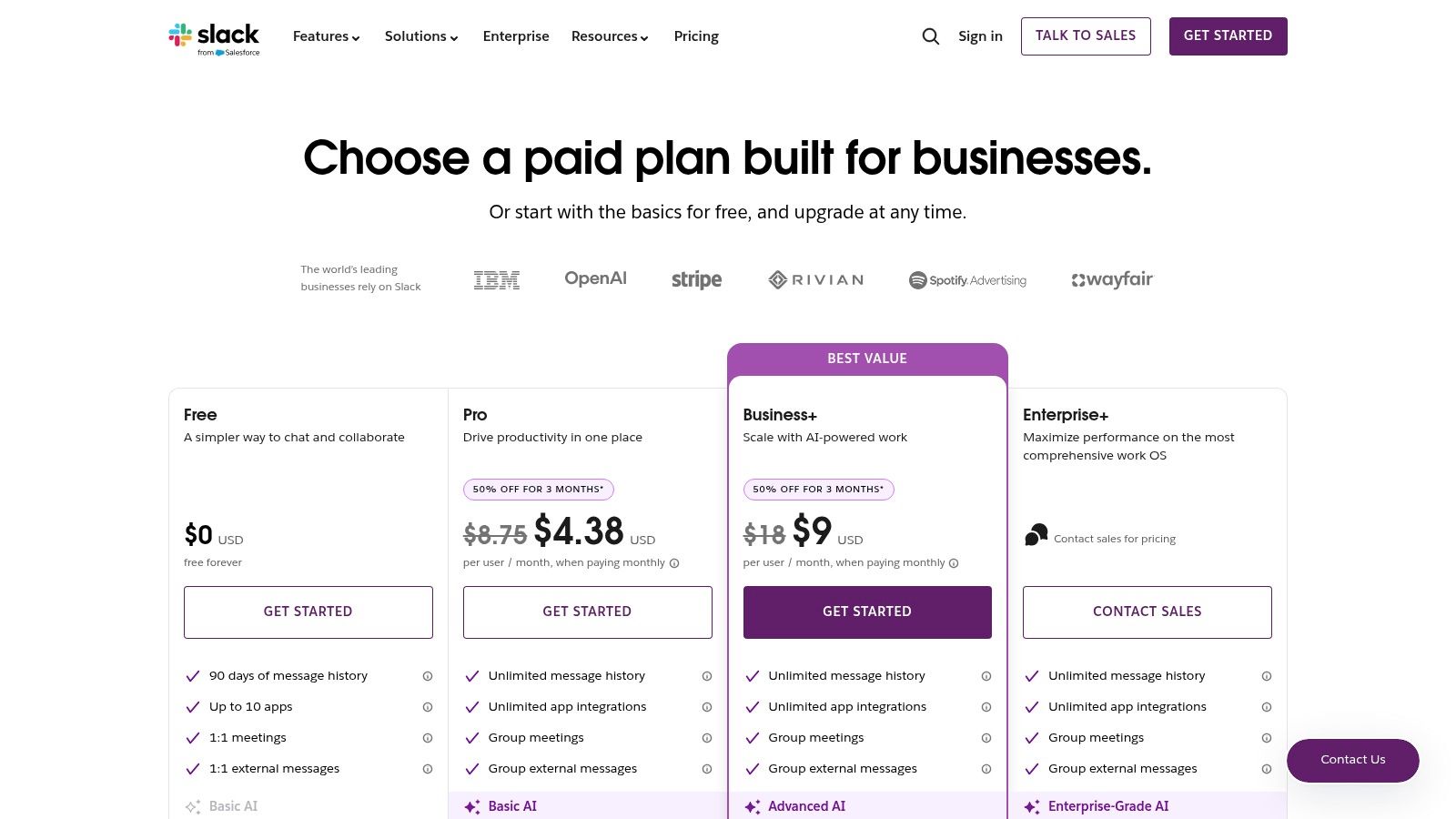
- Pricing: Slack offers a free tier with a 90-day message history limit. Paid plans are Pro ($8.75/user/month) and Business+ ($15/user/month), unlocking unlimited history, more integrations, and Slack Huddles for audio/video calls.
Visit Slack (opens new window)
# 3. Microsoft Teams
Microsoft Teams is an integrated collaboration hub, combining persistent chat, video meetings, and file storage within the Microsoft 365 ecosystem. For organizations already invested in Microsoft products, it centralizes teamwork by bringing together conversations, files from SharePoint and OneDrive, and Office apps like Word and Excel directly into one interface. This deep integration makes it a powerful tool for enterprises seeking a unified platform.
Its primary advantage over competitors is its seamless connection to the broader Microsoft 365 suite. Instead of patching together different services, remote teams can co-author documents, manage calendars, and host meetings without leaving the Teams application. This positions Microsoft Teams as one of the best collaboration tools for remote teams looking for an all-in-one solution with robust enterprise-grade security and administrative controls.
# Key Considerations for Remote Teams
Practical Tip: Use the "Praise" feature in a team channel to publicly recognize a colleague's contribution. This small act helps build morale and visibility, which is often difficult to achieve in a remote setting. Also, creating private channels for sensitive projects ensures that conversations and files are only accessible to specific team members.
- Best For: Companies deeply embedded in the Microsoft 365 ecosystem that need strong security, compliance, and governance features. It is ideal for large organizations managing identity and access across departments.
- Limitations: The interface can feel more complex and less intuitive than chat-first alternatives. Its full potential is only unlocked for businesses with a Microsoft 365 subscription, making it less flexible as a standalone tool.
- Pricing: A free version is available with limited features. Paid plans are included with Microsoft 365 subscriptions, such as Microsoft 365 Business Basic ($6/user/month) and Business Standard ($12.50/user/month), which add more features like meeting recordings and expanded cloud storage.
Visit Microsoft Teams (opens new window)
# 4. Google Workspace (Chat, Meet, Drive, Docs)
Google Workspace bundles productivity apps like Gmail, Chat, Meet, Drive, and Docs into a single, cloud-native suite. For remote teams already invested in Google's ecosystem, it offers a seamless and integrated experience. Its primary advantage is browser-based, real-time collaboration, where multiple users can co-edit documents, spreadsheets, and presentations simultaneously without friction. This makes it one of the best collaboration tools for remote teams that prioritize simplicity and speed.
Unlike competitors that often require desktop app installations for full functionality, Google Workspace is designed to be fully operational within a web browser. This cloud-first approach simplifies IT management and ensures every team member has access to the latest version of the tools. With Shared Drives for centralized file management and Google Meet integrated directly into Chat and Calendar, the suite effectively centralizes a team's core communication and documentation workflows.
# Key Considerations for Remote Teams
Practical Tip: Use the "Comment" and "Suggesting" modes in Google Docs extensively. Assign action items directly to colleagues by typing + or @ followed by their email. This keeps feedback and tasks contextual, preventing them from getting lost in separate chat threads or project management tools.
- Best For: Small to mid-sized businesses and teams that need a straightforward, all-in-one solution for document co-editing, video conferencing, and file storage. It's especially effective for organizations that collaborate frequently with external partners.
- Limitations: While powerful, the suite can feel less robust for enterprises requiring advanced data governance or deep integration with non-Google systems like Active Directory. Some users may find the feature set in Sheets or Slides less comprehensive than desktop-based alternatives. You can explore ways to supercharge your Google Meet experience (opens new window) with third-party tools.
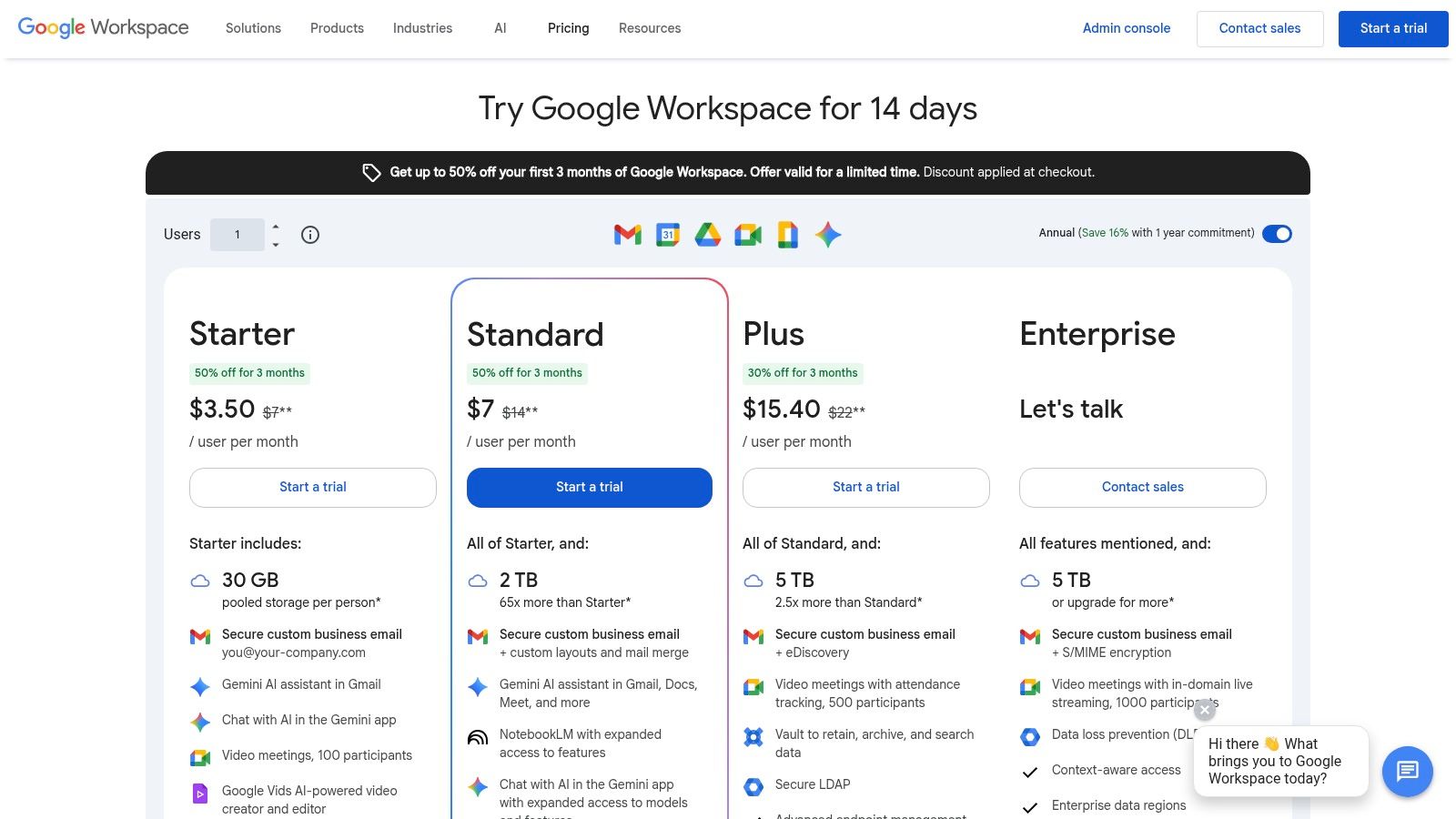
- Pricing: Plans start with Business Starter ($6/user/month) and go up to Business Standard ($12/user/month) and Business Plus ($18/user/month), which add more storage, larger meeting capacities, and security features.
Visit Google Workspace (opens new window)
# 5. Zoom (Zoom Workplace)
Zoom has become synonymous with video conferencing, offering a reliable, video-first collaboration suite. For remote teams, it serves as the platform for face-to-face meetings, webinars, and large-scale virtual events. Its strength is providing a consistently high-quality video and audio experience that is simple for both internal team members and external guests to join.
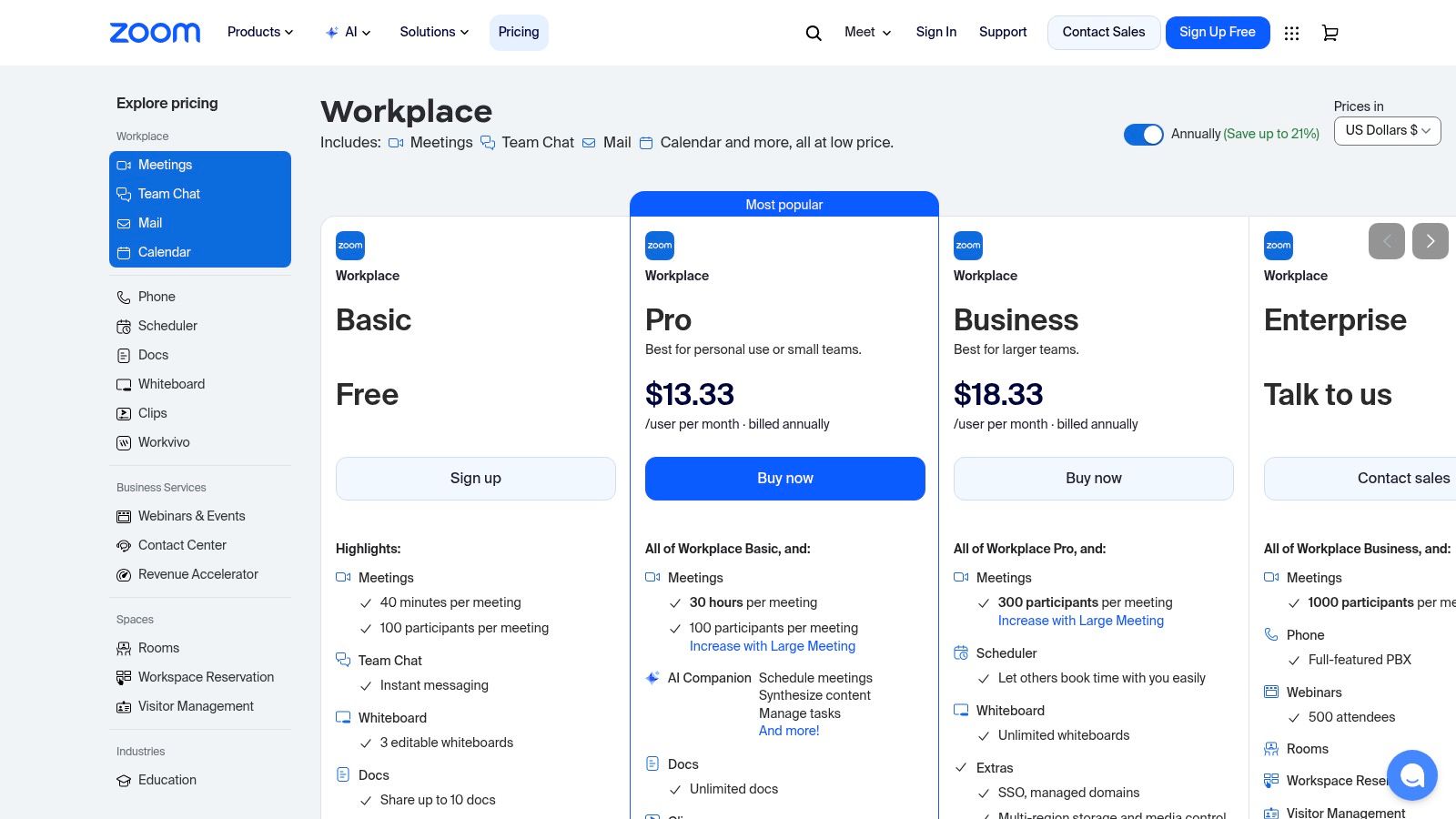
While competitors integrate video as one feature among many, Zoom built its entire platform around it and expanded from there. Now known as Zoom Workplace, it includes Team Chat, a collaborative Whiteboard, and scheduling tools, making it a more comprehensive solution. This video-centric approach makes it one of the best collaboration tools for remote teams who prioritize clear, stable, and feature-rich virtual meetings above all else. Its broad hardware ecosystem, from webcams to dedicated Zoom Rooms, further solidifies its position.
# Key Considerations for Remote Teams
Practical Tip: Use the "touch up my appearance" and "adjust for low light" settings in Video Settings to look professional, even without perfect lighting. For more productive sessions, you can explore our guide to running better Zoom meetings (opens new window).
- Best For: Teams that need industry-leading video reliability for both internal and external meetings. It's also ideal for companies hosting large-scale webinars or training sessions.
- Limitations: The total cost can increase significantly as you add necessary features like Zoom Phone or larger meeting capacities. Some advanced plan details and pricing are gated behind sales consultations.
- Pricing: A robust free plan allows 40-minute meetings. Paid plans start with Pro ($15.99/user/month) for longer group meetings, Business ($19.99/user/month) adding whiteboards and a managed domain, and custom Enterprise tiers.
# 6. Asana
Asana is a work management platform designed to provide clarity on who is doing what by when. For distributed teams, it serves as a single source of truth for tracking tasks, monitoring project progress, and aligning cross-functional workflows. Its strength is in visualizing work through multiple views like lists, timelines (Gantt charts), and Kanban boards, allowing team members to work in the format that suits them best.

While many tools handle simple to-do lists, Asana is one of the best collaboration tools for remote teams because it scales to manage complex programs and portfolios. Features like the Workflow Builder allow for automation, reducing manual coordination on recurring tasks. Connecting it with tools like Slack or Microsoft Teams brings task updates directly into communication channels, ensuring project momentum is visible to the entire team without constant app switching.
# Key Considerations for Remote Teams
Practical Tip: Use custom fields to add crucial context for your remote team, such as "Time Zone," "Priority Level," or "Review Stage." This makes tasks instantly scannable and reduces the need for back-and-forth clarification, which is vital when colleagues are not online at the same time.
- Best For: Teams that need strong visibility across multiple projects and departments. It excels at scaling from individual task management to high-level portfolio and goal tracking.
- Limitations: The most powerful features, like portfolios, goals, and advanced reporting, are locked behind the more expensive tiers. The platform can feel overly complex for very small teams with simple project needs.
- Pricing: Asana offers a generous free Basic plan for up to 10 users. Paid plans are Starter ($13.49/user/month) and Advanced ($30.49/user/month), which add timeline views, automations, and portfolio management.
Visit Asana (opens new window)
# 7. Trello (by Atlassian)
Trello is a visual collaboration tool that organizes projects into boards, lists, and cards using the Kanban methodology. For remote teams, it serves as a straightforward and highly visual way to track workflows, manage tasks, and see project progress at a glance. Its primary strength is its simplicity and intuitive drag-and-drop interface, making it exceptionally easy for non-technical team members to adopt without extensive training.
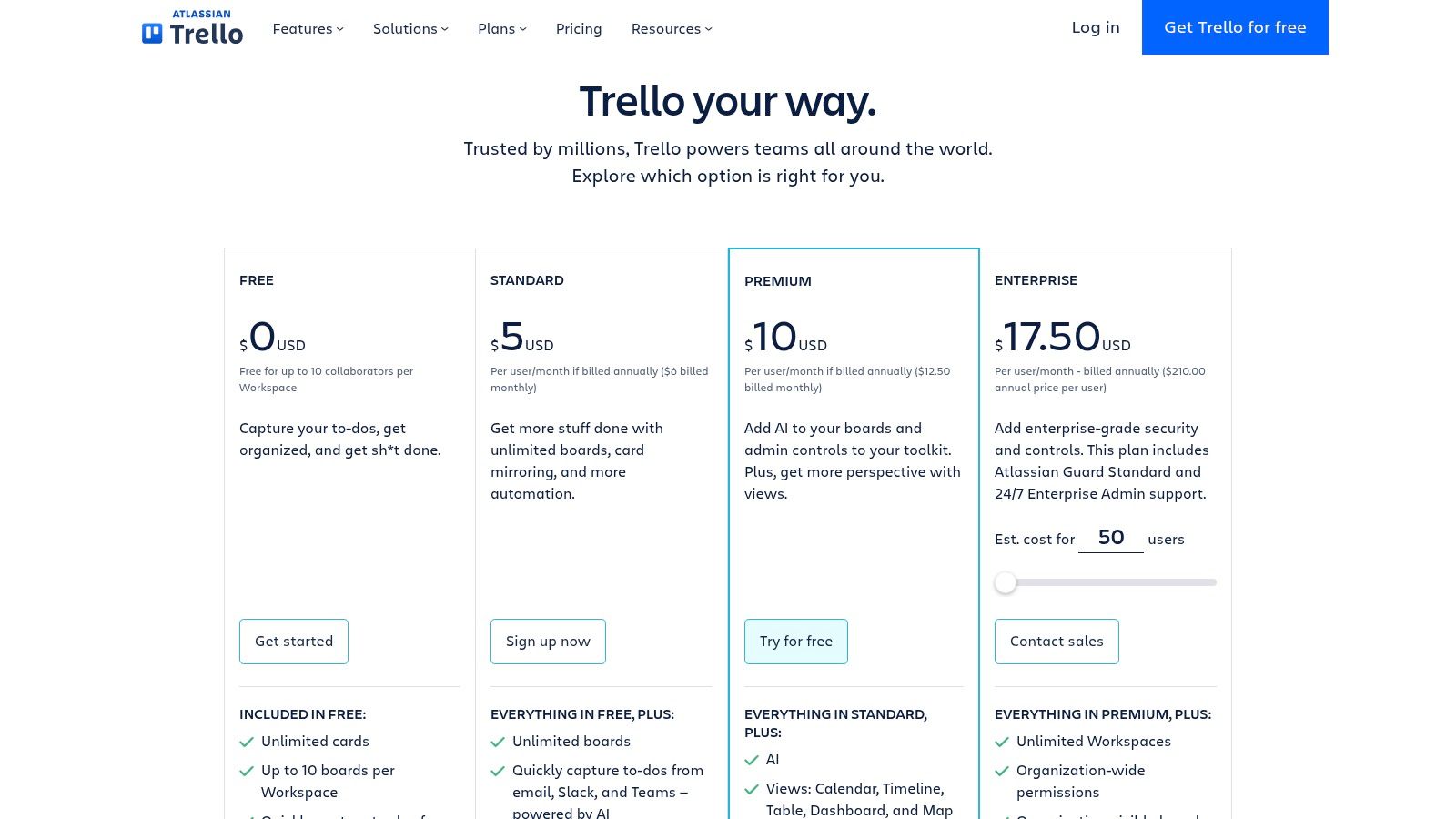
While other project management tools offer dense feature sets, Trello stands out as one of the best collaboration tools for remote teams focused on clarity and ease of use. It relies on "Power-Ups" to add advanced functionality like Gantt charts, time tracking, or integrations with tools like Slack and Google Drive. This à la carte approach allows teams to customize their boards for specific needs, from managing a content calendar to onboarding new hires, without overwhelming the user interface with unused features.
# Key Considerations for Remote Teams
Practical Tip: Use Trello's Butler automation to create rules that manage repetitive tasks. For example, automatically move a card to the "In Review" list when a specific team member is added to it, or set a due date for 48 hours after a card is moved into the "To-Do" list. This reduces manual administration and keeps projects moving.
- Best For: Teams that need a simple, visual way to manage projects and workflows, especially for tasks that are not overly complex. It excels as a content calendar, simple sales pipeline, or personal task board.
- Limitations: Lacks the robust, built-in reporting and resource management features of more comprehensive project management suites. Complex projects may require numerous Power-Ups, which can make it feel less integrated.
- Pricing: Trello has a generous free tier with up to 10 boards. Paid plans include Standard ($6/user/month), Premium ($12.50/user/month) for additional views like Calendar and Timeline, and Enterprise ($17.50/user/month) for organization-wide controls.
Visit Trello (opens new window)
# 8. Notion
Notion is a connected workspace that blends documents, wikis, and databases into a single, highly flexible platform. Remote teams use it as a central knowledge base, project tracker, and documentation hub, replacing scattered Google Docs and Confluence pages. Its strength comes from its modular "block" system, where every piece of content, from text to a database entry, can be manipulated and interconnected. This structure creates a single source of truth that is both powerful and easy to navigate.
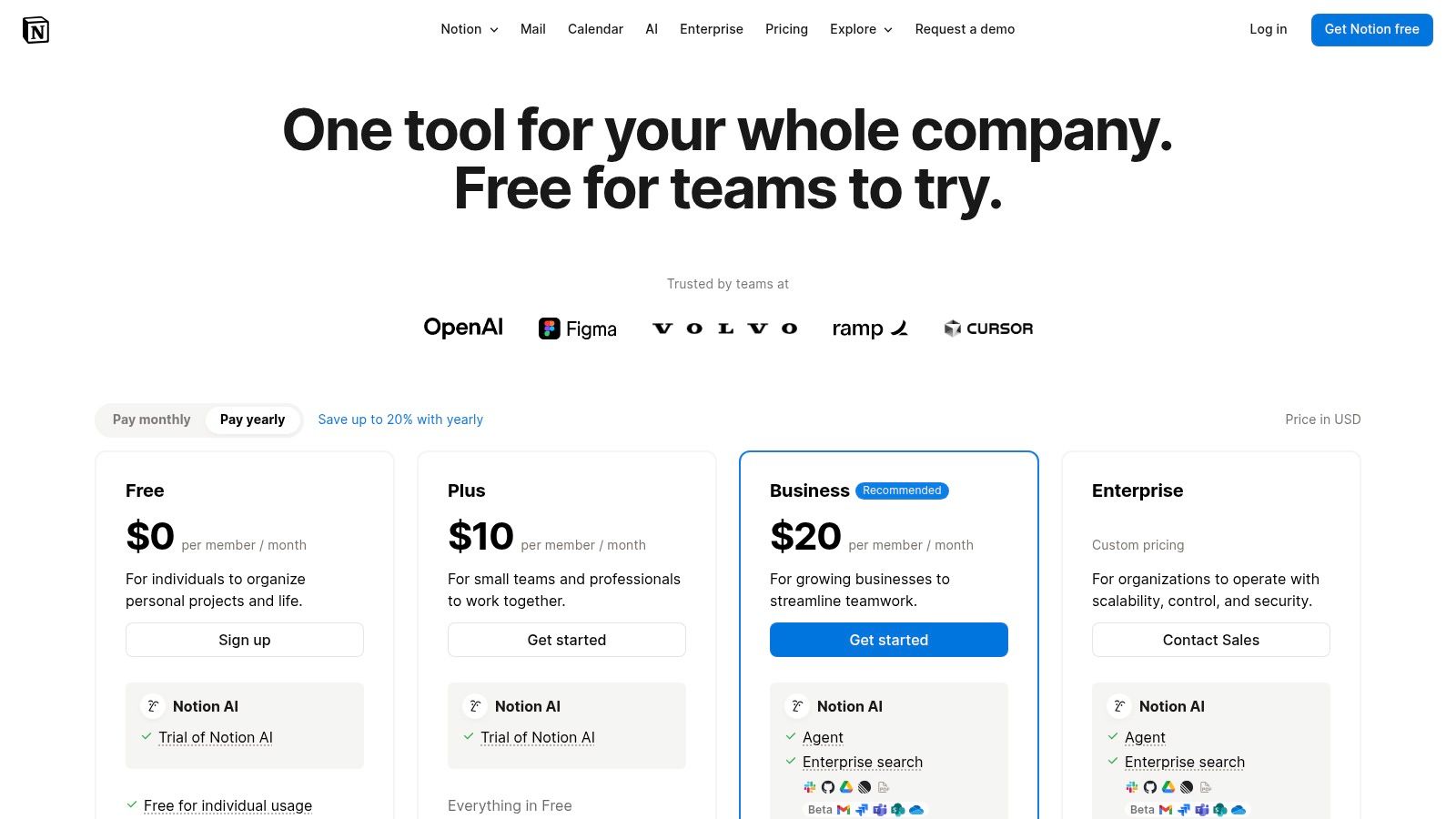
Unlike competitors that focus on either documents or project tasks, Notion excels by combining them. You can embed a task database directly within a project brief or create a team wiki where pages link to active projects and meeting notes. For teams leveraging Notion extensively, exploring the ecosystem of complementary tools can further enhance its utility; consider examining the best Notion website builder tools (opens new window) to turn internal docs into public-facing sites. This all-in-one approach makes Notion one of the best collaboration tools for remote teams aiming to consolidate their software stack.
# Key Considerations for Remote Teams
Practical Tip: Create and enforce a standardized set of templates for common documents like project plans, meeting notes, and engineering RFCs. This prevents workspace chaos and ensures new team members can quickly find information and contribute effectively without having to build pages from scratch.
- Best For: Teams that need a single, customizable platform for knowledge management, documentation, and lightweight project tracking. It's ideal for creating a central "team brain."
- Limitations: The extreme flexibility can lead to disorganization without a clear structure and governance. Its performance can sometimes lag with very large, complex databases.
- Pricing: Notion has a free plan for individuals. Paid plans are Plus ($10/user/month), Business ($18/user/month), and custom Enterprise pricing, which add more collaboration features, security controls, and AI capabilities.
Visit Notion (opens new window)
# 9. Miro
Miro is a collaborative online whiteboard platform designed to replicate the experience of an in-person workshop for distributed teams. It provides an infinite canvas where teams can brainstorm with digital sticky notes, map out user flows, and facilitate agile ceremonies like retrospectives. Its strength is transforming abstract ideation into tangible, visual artifacts that keep everyone aligned, regardless of their location.
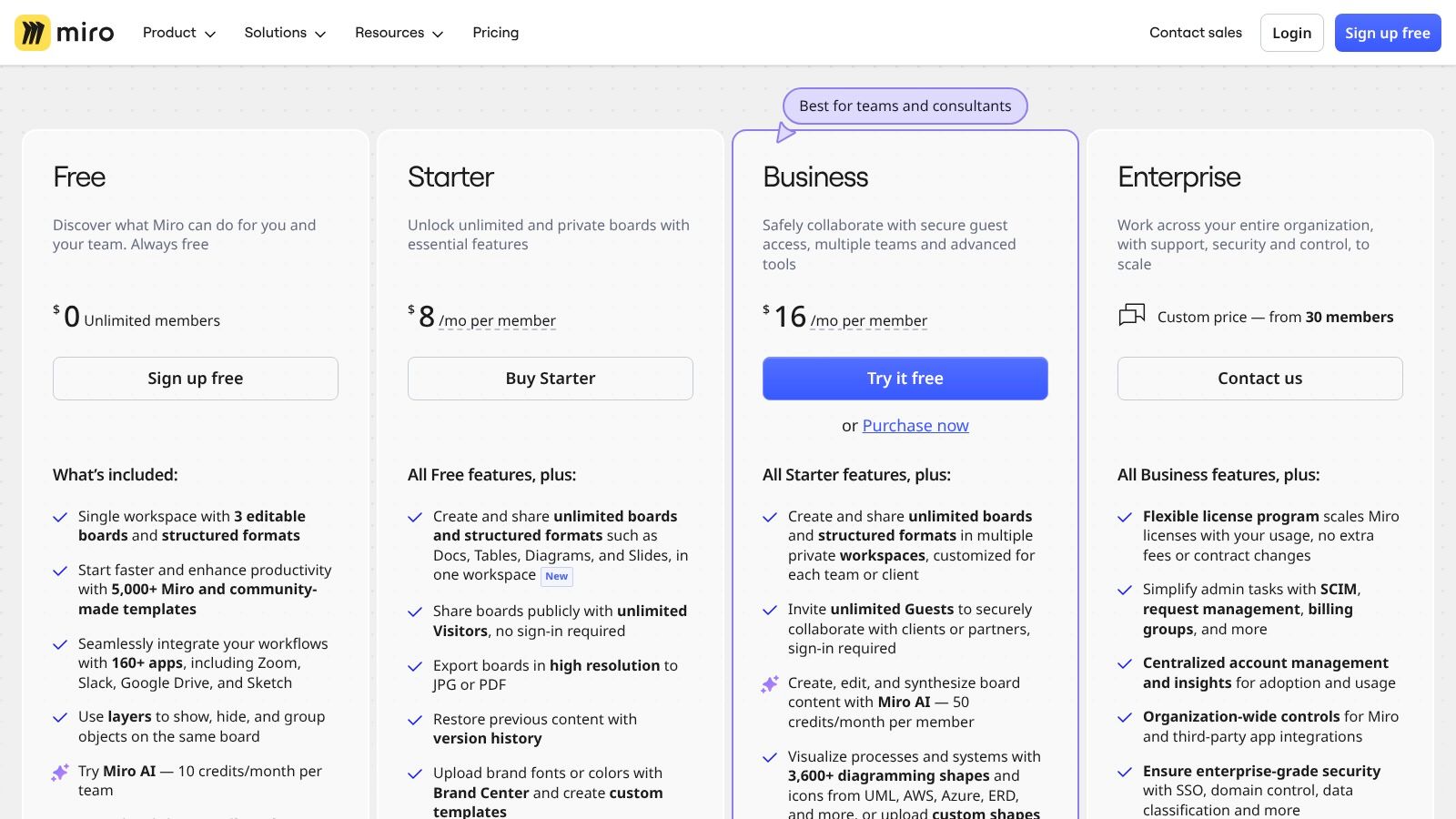
Unlike simple digital whiteboards, Miro is one of the best collaboration tools for remote teams because it offers a rich template marketplace and deep integrations with tools like Jira, Asana, and Microsoft Teams. This allows teams to pull in tasks or embed boards directly into other applications, connecting visual planning with project execution. Its robust feature set, including Miro AI for summarizing ideas and enterprise-grade security controls, makes it a versatile solution for both creative sessions and structured planning.
# Key Considerations for Remote Teams
Practical Tip: When facilitating a workshop, use the "bring everyone to me" feature to focus participants' attention on a specific area of the board. Lock down background elements and templates to prevent accidental edits, ensuring the session runs smoothly without technical distractions.
- Best For: Product, design, and engineering teams that rely on visual collaboration for brainstorming, agile rituals, and strategic planning. It is also excellent for remote workshop facilitators and consultants.
- Limitations: Complex boards with many elements can become slow and tax the performance of lower-end computers. Some of the most useful collaboration features, like private boards and advanced user management, require a paid Business or Enterprise plan.
- Pricing: Miro has a free plan with three editable boards. Paid plans include Starter ($10/user/month) and Business ($20/user/month), which add unlimited boards, private board sharing, and integrations.
# 10. monday.com (Work Management)
monday.com is a highly visual and flexible work operating system where teams build custom workflows to manage everything from simple tasks to complex project portfolios. Remote teams use its colorful, board-centric interface to create a shared workspace that tracks progress, centralizes communication, and automates repetitive tasks. Its main advantage is its adaptability; you can shape boards, columns, and dashboards to fit virtually any process without writing a single line of code.
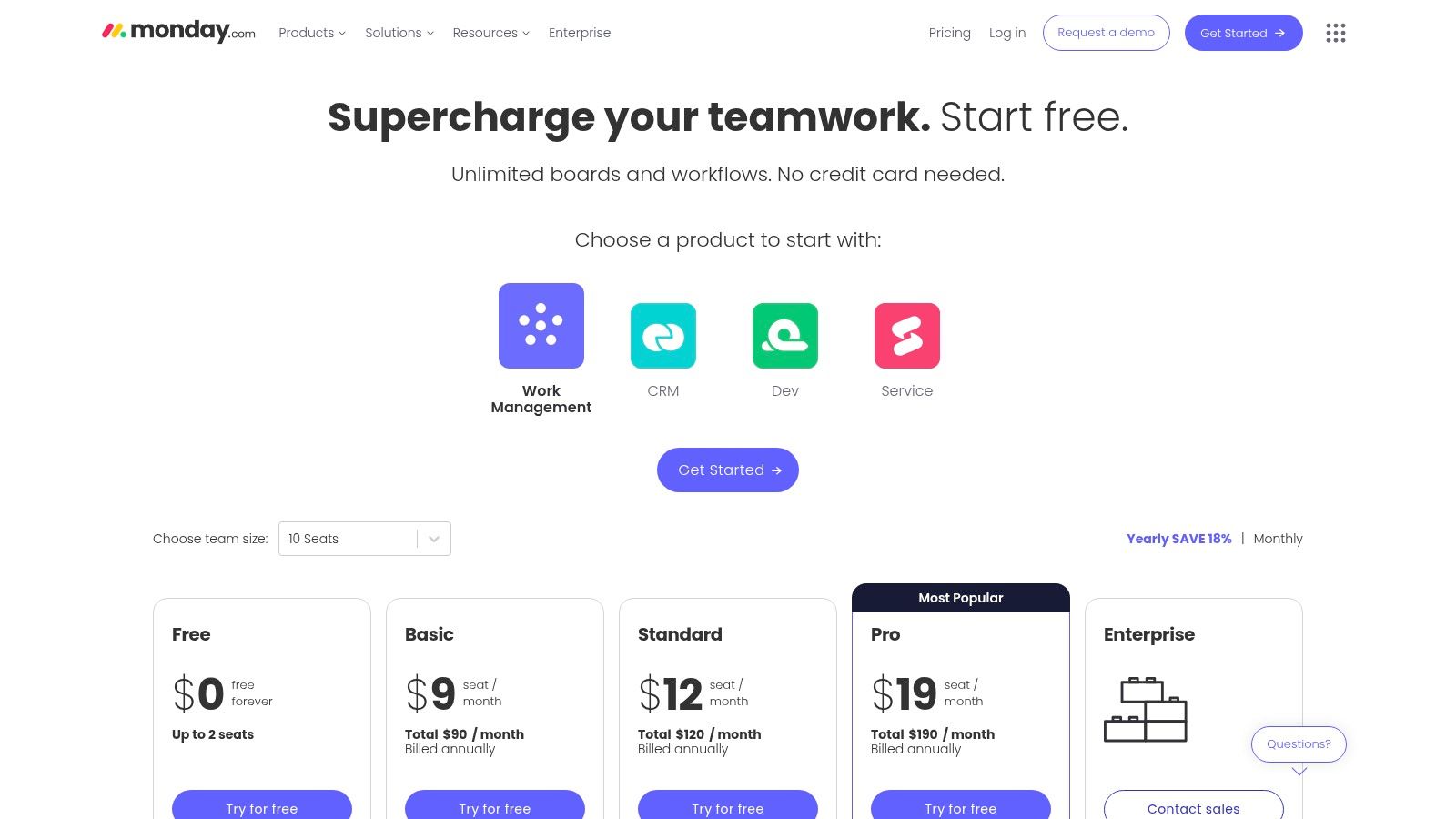
Unlike more rigid project management tools, monday.com functions like a set of digital building blocks. Teams can combine different column types (like status, timeline, or people) and visualize their data through various views, including Kanban, Gantt, and Calendar. This makes it one of the best collaboration tools for remote teams that have diverse needs, from creative production pipelines to sales CRMs, all managed within a single platform.
# Key Considerations for Remote Teams
Practical Tip: Use the "My Work" view to create a personalized, aggregated to-do list from all boards you're assigned to. For remote workers juggling multiple projects, this view cuts through the noise and provides a single source of truth for daily priorities, preventing tasks from slipping through the cracks.
- Best For: Cross-functional teams that need a single, customizable platform to manage diverse types of projects and ongoing operational workflows without deep technical skills.
- Limitations: The per-seat pricing model can become expensive for larger teams, and the automation and integration quotas on lower-tier plans can be restrictive for complex workflows.
- Pricing: monday.com offers a free plan for up to 2 users. Paid plans are Basic ($10/user/month), Standard ($12/user/month), and Pro ($20/user/month), with a minimum of 3 users required.
Visit monday.com (opens new window)
# 11. ClickUp
ClickUp aims to be the "one app to replace them all" by unifying tasks, documents, chat, goals, and whiteboards into a single platform. For distributed teams, it consolidates the work stack, reducing the need to switch between different applications for project management and documentation. Its strength is a deeply hierarchical structure that lets teams organize work from the organization level (Spaces) down to individual subtasks.
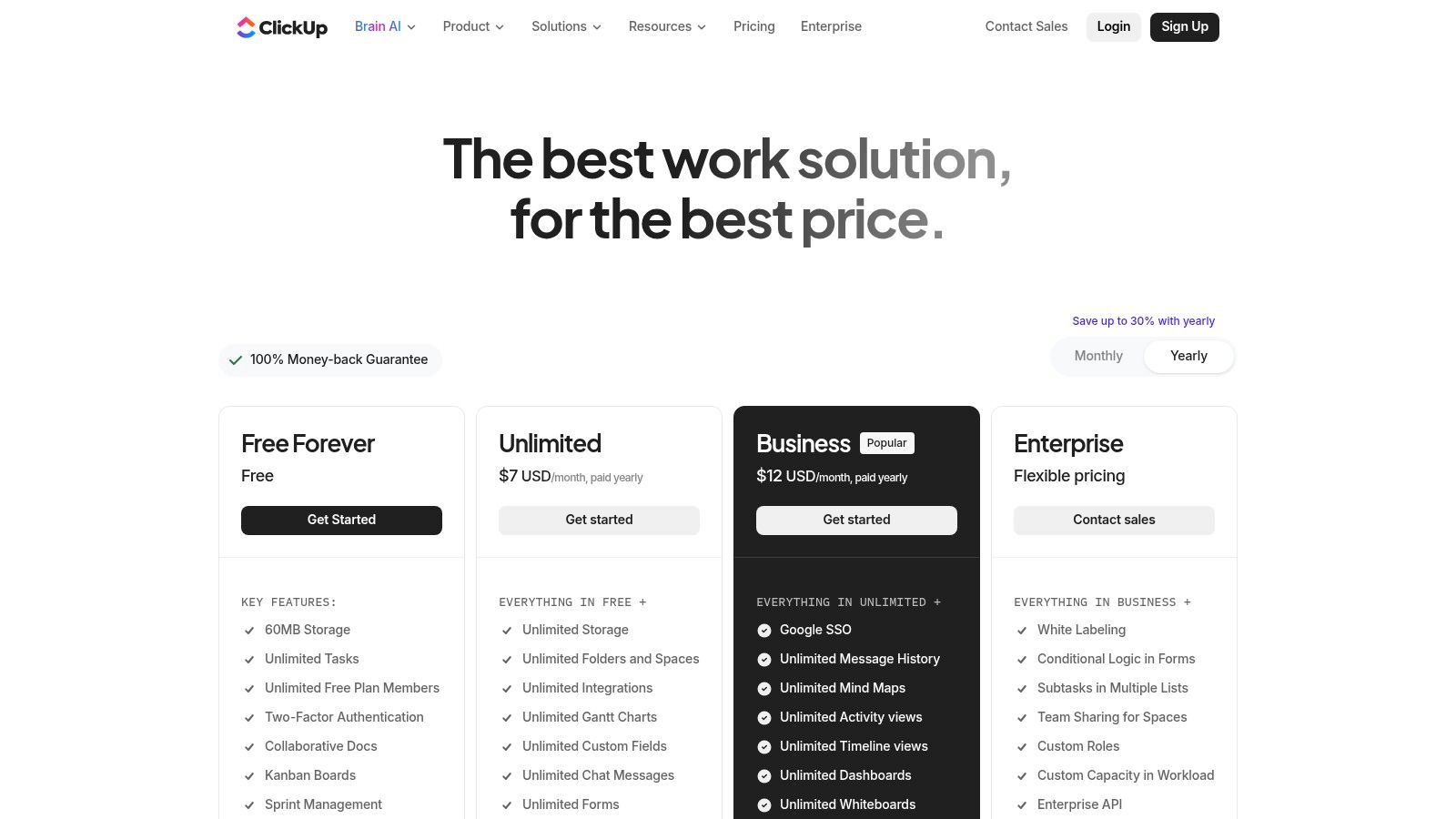
Unlike more specialized project managers, ClickUp's breadth makes it one of the best collaboration tools for remote teams looking for an all-in-one solution. Features like native time tracking, goal setting (OKRs), and extensive automation are built directly into the platform, not offered as paid add-ons. Multiple project views, including Gantt, Calendar, and Kanban boards, allow different team members to visualize work in the way that suits them best without altering the underlying data for others.
# Key Considerations for Remote Teams
Practical Tip: To avoid feeling overwhelmed, start by using only the core task management features in a List or Board view. Introduce other features like Docs, Goals, or different views one by one as the team gets comfortable. Use templates to standardize project setups and reduce initial configuration time.
- Best For: Budget-conscious teams wanting to consolidate their software stack into a single, feature-dense platform. It’s ideal for organizations that need high levels of customization and visibility across different departments.
- Limitations: The sheer number of features creates a steep learning curve for new users. Without a dedicated administrator to enforce structure, workspaces can quickly become disorganized and cluttered.
- Pricing: ClickUp offers a generous free-forever plan. Paid plans start with Unlimited ($10/user/month) for more storage and features, Business ($19/user/month) for advanced automations and time tracking, and an Enterprise tier.
Visit ClickUp (opens new window)
# 12. G2
G2 is not a collaboration tool itself but a software marketplace that provides an essential service: helping you find the right one. It aggregates verified user reviews, category rankings, and comparison grids for thousands of software products. For remote teams, it acts as a research hub to shortlist solutions based on authentic user feedback, company size, and specific industry needs, cutting through marketing jargon.
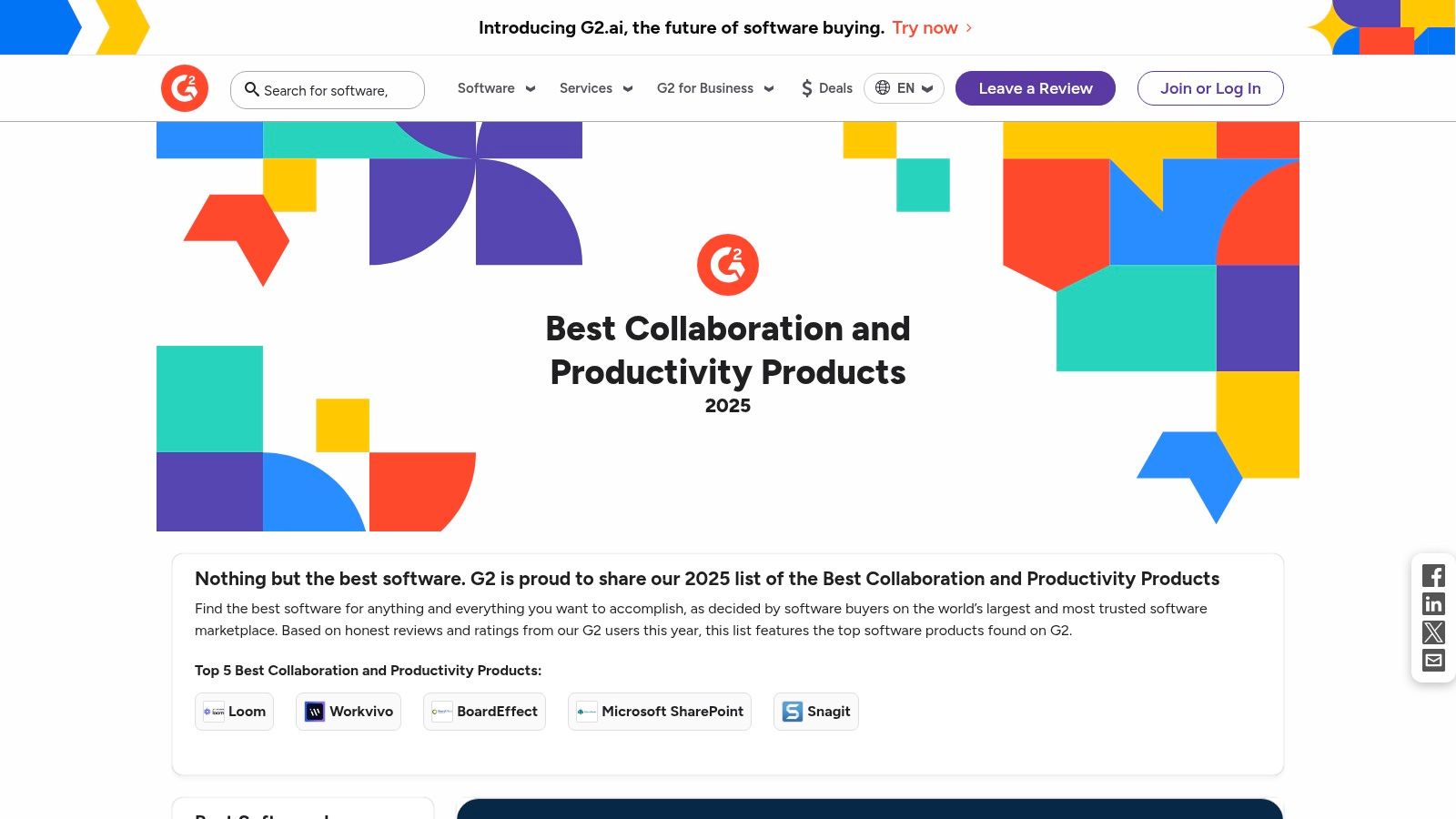
Unlike simple review sites, G2's strength is in its structured data. You can directly compare up to four tools side-by-side on features, satisfaction ratings, and market presence using its Grid reports. This data-driven approach is invaluable for finding the best collaboration tools for remote teams, allowing you to see how a tool performs for a small business versus an enterprise. The platform also provides direct links to vendor trials and purchase pages, streamlining the evaluation process from research to implementation.
# Key Considerations for Remote Teams
Practical Tip: Use the filters to narrow results by your company size (e.g., Small Business) and industry. Pay close attention to reviews from the last 6-12 months, as software capabilities and pricing can change rapidly. This ensures you're evaluating tools based on their current performance and user sentiment.
- Best For: Teams in the evaluation phase of their software search, looking for unbiased peer reviews and direct comparisons to build a shortlist of tools. It's also useful for validating a vendor's claims against real-world user experiences.
- Limitations: Sponsored placements can sometimes influence which tools appear most prominently in search results. Additionally, some list prices on G2 may not reflect the final negotiated quotes, especially for enterprise-level contracts.
- Pricing: G2 is free to use for software buyers. Vendors pay for premium profile features and promotional placements.
# Top 12 Remote Collaboration Tools — Feature Comparison
| Product | Core features | UX / Rating | Value & Pricing | Target audience | Unique selling points |
|---|---|---|---|---|---|
| MuteDeck 🏆 | Universal meeting controls (mute/cam/share/record/leave); hardware + REST API | Instant visual status; ★★★★★ | 7‑day trial; perpetual/lifetime options often available 💰 | 👥 Presenters, power multitaskers, hardware‑deck users | ✨ Physical deck support (Elgato/Loupedeck), REST API, app shortcuts |
| Slack | Channels, DMs, Huddles, 2,600+ integrations | Organized but can be noisy; ★★★★ | Free tier; paid tiers add AI/search & admin features 💰 | 👥 Chat‑centric teams, product & support | ✨ Large app ecosystem, Slack AI |
| Microsoft Teams | Chat, meetings, calls + deep Microsoft 365 integration | Enterprise‑grade features; ★★★★ | Bundled with Microsoft 365; paid tiers for advanced features 💰 | 👥 Enterprises, M365 customers | ✨ Tight Office integration, compliance & governance |
| Google Workspace | Gmail, Meet, Drive, Docs co‑editing | Fast browser collaboration; ★★★★ | Simple SMB pricing; tiers add AI & admin controls 💰 | 👥 Cloud‑first teams, education & SMBs | ✨ Real‑time co‑editing, Gemini AI |
| Zoom (Workplace) | HD meetings, breakout rooms, webinars, whiteboards | Best‑in‑class video reliability; ★★★★★ | Free tier; add‑ons (Phone, Rooms, Webinars) can increase cost 💰 | 👥 Video‑first teams, webinars & events | ✨ Industry‑leading video + broad ecosystem |
| Asana | Tasks, timelines, automations, portfolios | Strong visibility & reporting; ★★★★ | Free/basic; Advanced/Business for PM features 💰 | 👥 Project managers, operations teams | ✨ Portfolio reporting, workflow builder |
| Trello | Boards, lists, cards, Butler automations | Very low learning curve; ★★★★ | Free tier; affordable Premium for views & power‑ups 💰 | 👥 Small teams, non‑PM users | ✨ Simple visual Kanban, easy onboarding |
| Notion | Pages, databases, templates, relations/rollups | Flexible all‑in‑one workspace; ★★★★ | Free/personal; Business tiers add security & AI 💰 | 👥 Knowledge teams, startups, docs owners | ✨ Docs + DBs in one workspace |
| Miro | Infinite canvas, templates, diagramming, AI | Excellent for workshops; ★★★★ | Free/paid; Enterprise security & governance 💰 | 👥 Designers, product teams, facilitators | ✨ Visual workshops, templates & ideation tools |
| monday.com | Custom boards, automations, dashboards | Highly configurable; ★★★★ | Seat‑based pricing; feature/automation caps apply 💰 | 👥 Ops, cross‑functional work, PMs | ✨ No‑code customization & dashboards |
| ClickUp | Tasks, docs, goals, whiteboards, automations | Feature‑dense; ★★★★ | Competitive tiers; many features included 💰 | 👥 Teams replacing multiple apps | ✨ Consolidates tasks, docs, goals & time tracking |
| G2 | Verified reviews, category grids, comparisons | Huge review volume; ★★★★ | Free to browse; vendors pay for enhanced listings 💰 | 👥 Buyers shortlisting software | ✨ Verified user reviews, Grid reports and rankings |
# Building a Stack That Works
Navigating the landscape of collaboration software can feel like an endless scroll. We've explored a dozen of the best collaboration tools for remote teams, from all-in-one platforms like Google Workspace and Microsoft Teams to specialized project managers like Asana and ClickUp. The key takeaway is not to find a single "perfect" tool, but to assemble a lean, functional stack that solves your team's specific problems.
Tool overload is a real issue. Adopting a new app for every minor inconvenience creates confusion, fragments information, and increases costs. A better approach is to build from a solid foundation. Most teams need a central hub for communication and a system for tracking work. That might mean pairing Slack with Trello for a straightforward, visual workflow or using the integrated power of Microsoft Teams and its ecosystem for a more unified corporate environment.
Once your core communication and project management needs are met, you can layer on specialized tools with surgical precision.
# Identifying Your True Needs
Before you commit to a new subscription, conduct a simple audit of your team's daily workflows. Where are the actual bottlenecks? Don't just look for what's broken; identify what could be significantly smoother.
- For heavy visual planners: If your team relies on brainstorming sessions and strategic mapping, a dedicated digital whiteboard like Miro is non-negotiable. Its capabilities far exceed the basic whiteboarding features tacked onto video conferencing apps.
- For complex, multi-stage projects: A simple Kanban board like Trello might not be enough. This is where a more robust work OS like monday.com or ClickUp provides value, offering multiple views (Gantt, timeline, calendar) and deep automation.
- For knowledge-centric teams: If your work revolves around creating and organizing documents, wikis, and databases, a tool like Notion can serve as both a project manager and a central knowledge base, reducing the need for separate apps.
The goal is integration, not accumulation. How well does a new tool fit with your existing stack? A project management app that syncs seamlessly with your chat platform, calendar, and file storage prevents manual data entry and keeps everyone on the same page.
# The Human Element: Managing the Meeting Experience
One of the most persistent friction points in remote work is the video meeting itself. Juggling multiple platforms like Zoom, Teams, and Google Meet means dealing with different interfaces, keyboard shortcuts, and controls. This cognitive load, while seemingly small, adds up over a week of calls. It distracts from the conversation and makes presenting a challenge.
This is where a utility tool can bridge the gaps between your primary platforms. Instead of trying to master the unique quirks of each video conferencing app, you can use a single, consistent interface to manage the most common actions: muting your mic, controlling your camera, and sharing your screen.
Choosing the best collaboration tools for remote teams is an ongoing process of evaluation and refinement. Start with a solid foundation, identify specific pain points, and add specialized tools that integrate cleanly. The most effective remote work stack is not the one with the most features; it's the one that feels invisible, allowing your team to focus on the work itself, not the tools they use to do it.
Tired of fumbling for the mute button across Zoom, Teams, and Meet? MuteDeck provides a single, universal control panel for all your video calls, on your computer or physical hardware like a Stream Deck. Take control of your meetings and stay focused on the conversation. Learn more about MuteDeck (opens new window).