# Finding the Best Meeting Management Software
Let's be honest, we've all been there: the meeting that could have been an email, the one with no agenda, or the one where great ideas get lost the second the call ends. Modern work runs on meetings, but too often they feel like a disorganized mess instead of a productive jam session.
This is exactly why dedicated meeting management software is no longer a "nice-to-have." Tools like Fellow (opens new window) and Hugo (opens new window) aren't just fancy notepads; they’re built to bring structure to the entire meeting lifecycle, from planning the agenda to tracking who's doing what afterward.
# Why Better Meetings Need Dedicated Software
Traditional tools just can't keep up. Relying on a mix of scattered Google Docs, calendar invites, and Slack threads for something as critical as a project kickoff or a quarterly review is a recipe for disaster. Important context gets buried, people show up unprepared, and action items vanish into thin air.
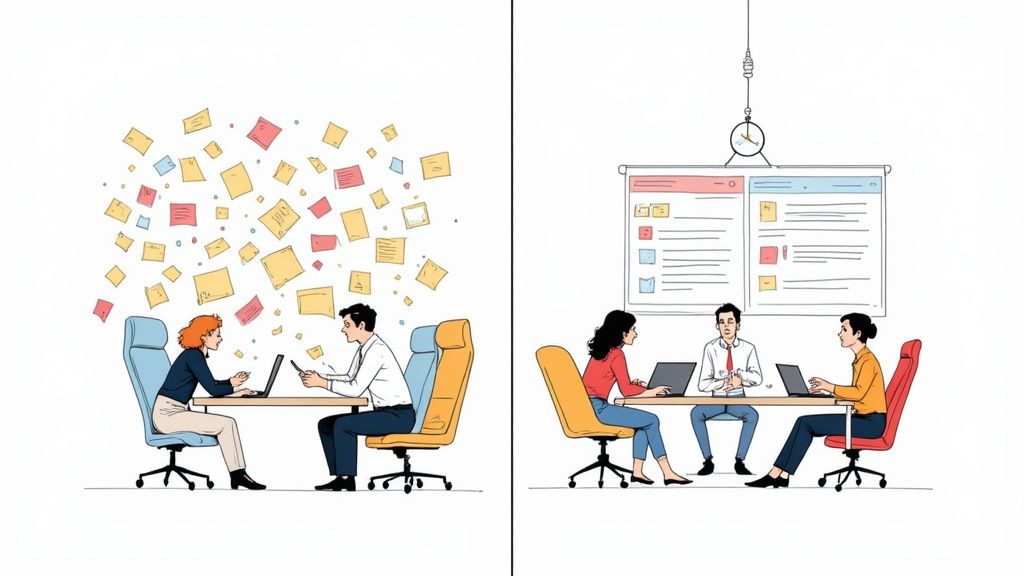
The market growth tells the story. The global meeting management software space was valued at around $2.5 billion in 2023 and is expected to rocket to $8.7 billion by 2032. This isn't just a tech trend; it's a fundamental shift in how successful teams collaborate. You can dig into more of the data on dataintelo.com (opens new window).
# Transforming Chaos Into Clarity
So, what do these platforms actually do? They provide a single source of truth that connects every phase of your meeting.
- Before the meeting: Forget last-minute scrambling. Practical Tip: A team lead can spin up a collaborative agenda using a template, and everyone can add their discussion points and review docs ahead of time. People arrive ready to contribute, not just to listen.
- During the meeting: As the conversation flows, notes are captured in real-time. Practical Example: A project manager can assign an action item to an engineer right within the meeting notes, complete with a due date. No more, "Wait, who was going to handle that?"
- After the meeting: The system automatically sends out a clean summary with all the notes and tasks. This creates instant alignment and accountability, ensuring the work actually gets done.
A great meeting leaves everyone feeling energized and clear on their next steps. The right software is the framework that makes this happen consistently, not just occasionally.
To give you a clearer picture, here’s a quick breakdown of what these tools bring to the table.
# Core Benefits of Meeting Management Software
| Benefit | How It Helps Your Team | Practical Example |
|---|---|---|
| Centralized Agendas | Everyone knows the plan and can contribute ahead of time. | Your weekly team sync agenda is pre-populated with recurring items, and team members add their updates before the meeting starts. |
| Action Item Tracking | Tasks are assigned to specific owners with due dates, ensuring nothing gets dropped. | During a project kickoff, you assign the task "Draft initial wireframes" to the lead designer, due next Friday. |
| Improved Accountability | A clear, shared record of decisions and commitments keeps everyone on the same page. | When a question about a past decision comes up, anyone can pull up the meeting notes from three weeks ago to see what was agreed upon. |
| Reduced Admin Work | Automation handles sending summaries and reminders, freeing up time. | After the meeting ends, the software automatically emails a recap to all attendees and a separate reminder to those with action items. |
This structure isn't just about being tidy; it's about reclaiming lost time and making sure every conversation moves the needle.
# The Real Cost of Disorganization
Without a dedicated system, the hidden costs of bad meetings pile up fast. Wasted salaries, missed deadlines, and unimplemented decisions all stem from a lack of structure. Think of this software less as another subscription and more as an investment in your team's focus and output.
If you're looking to sharpen your own meeting habits, our Meeting Masters Playbook (opens new window) is packed with practical tips to help you run sessions that people actually look forward to.
# How to Evaluate Meeting Management Tools
Picking the right meeting management software means looking past the flashy feature lists and getting real about what your team actually needs. Before you start comparing tools side-by-side, you need a solid framework. This is how you cut through the marketing noise and find a solution that genuinely fixes your workflow, instead of just adding another icon to your desktop.
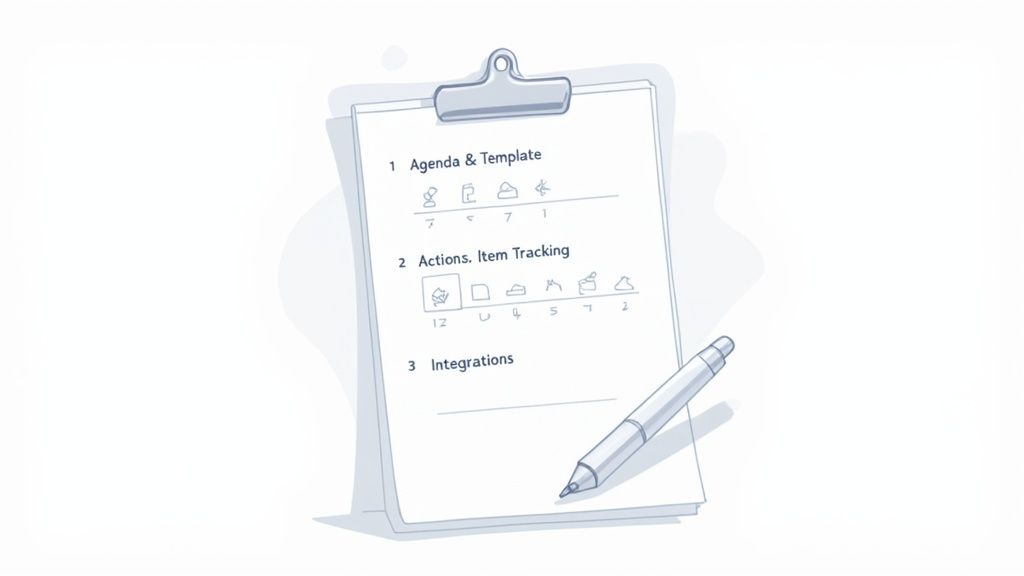
The best way to do this? Create a personalized scorecard based on your biggest headaches. Practical Tip: Don't just ask, "Does it have X feature?" Instead, ask, "How will X feature solve our problem of Y?" That simple shift changes the game from a feature hunt to a search for real results.
# Agenda and Template Management
Every good meeting starts with a solid agenda. It’s the foundation. Look for software that makes creating agendas a team sport and lets you reuse your best work. The goal is to kill the last-minute scramble for good and make sure everyone shows up knowing exactly why they're there.
Ask yourself a few practical questions:
- Can we build templates? We need to create and share standardized templates for our weekly syncs or monthly all-hands. This is non-negotiable for consistency and saving time.
- Is it collaborative? Can multiple people drop in agenda items and attach files before the meeting starts?
- Can we manage time? Does the tool let us assign time blocks to each topic? This is key to keeping discussions on track and respecting everyone's schedule.
Practical Example: A marketing team could build a "Campaign Kickoff" template with standard slots for goals, target audience, budget, and deliverables. That way, nothing critical ever gets missed when a new project spins up.
# Action Item and Decision Tracking
A meeting is only as good as what happens after it ends. If decisions vanish into thin air and action items get forgotten, you just wasted an hour of everyone's time. The best tools weave accountability right into the workflow.
The critical bridge between discussion and execution is clear, visible, and assigned action item tracking. Without it, even the most insightful meeting fails to produce results.
When you're looking at different platforms, focus on the post-meeting phase. Can you assign tasks to people with due dates, right from the meeting notes? Better yet, does it send reminders to keep things moving? Practical Tip: Look for a tool that not only assigns tasks but also shows a centralized view of all action items assigned to you across all meetings, so you have a personal to-do list.
# Integration Capabilities
No tool is an island. A platform's ability to plug into your existing ecosystem—your calendar, project management app, and chat client—is absolutely crucial. Bad integrations create friction, which means people just won't use the tool.
Make a simple checklist to see how well a potential tool plays with others.
- Calendar Sync: Does it have a deep, two-way sync with Google Calendar (opens new window) or Outlook? A change in one place needs to show up instantly in the other.
- Project Management: Can you push action items directly into tools like Asana (opens new window), Jira (opens new window), or Trello (opens new window)? This is vital for linking meeting outcomes to actual project work.
- Communication Hubs: Does it talk to Slack (opens new window) or Microsoft Teams (opens new window)? Getting real-time pings for agenda updates or new tasks is a must.
Practical Example: An engineering team would get huge value from a tool that can turn a discussion point into a Jira ticket with one click. That single integration saves a ton of time and ensures nothing gets lost in translation.
# A Practical Comparison of Leading Platforms
Okay, you've got your criteria. Now it's time to put the top contenders under the microscope. Let's be real: there's no single "best" meeting management tool. The right one is the one that fits how your team actually works—your pain points, your habits, and the apps you already have open all day.
We're going to dive into a few popular options: Fellow (opens new window), Hugo (opens new window), and Beenote (opens new window). Forget the marketing fluff. We’ll look at how they perform in real-world scenarios to help you see which one genuinely solves your problems.
Each of these platforms brings a different philosophy to the table, solving meeting chaos from a unique angle.
# Fellow: The Specialist for Manager-Led Teams
Fellow has carved out a solid niche by zeroing in on the human side of meetings, especially the critical one-on-ones and team syncs that managers live and die by. It’s built around fostering continuous feedback and making sure those conversations are structured and meaningful.
If you’re a manager trying to bring more intention to your leadership, Fellow is probably for you. It excels at creating collaborative agendas where you and your direct report can both add talking points. This simple feature transforms check-ins from one-sided updates into productive, two-way conversations.
Key Differentiator: Fellow is less about just managing a meeting and more about managing the relationships and developmental conversations that happen within them. It’s human-centric by design.
Practical Example: Imagine using a Fellow template for quarterly reviews. It has built-in sections for self-reflection, manager feedback, and goal setting. Over time, this creates a clear, organized history of an employee’s growth, all in one spot. No more digging through old docs.
# Hugo: The Integration Powerhouse for Tech Teams
Hugo's killer feature is its deep, almost seamless connection to the tools your team already uses. It acts as a central hub that turns meeting notes into action, a superpower for fast-moving product and engineering teams who live in tools like Jira and Asana.
While lots of platforms have integrations, Hugo’s just feel better. The ability to highlight a line in your notes and instantly create a Jira ticket, a Salesforce task, or a Trello card is a game-changer. It kills the soul-crushing "copy-paste-and-forget" routine that lets action items fall through the cracks.
Practical Example: A product manager in a bug-bash meeting can highlight a note about a new issue, and with a quick command, turn it into a Jira ticket assigned to the right developer. That direct pipeline from conversation to workflow is where Hugo absolutely shines.
# Beenote: The Structured Solution for Formal Meetings
Beenote is built for a different world—one with boards, committees, and government bodies that demand formality and structure. It’s all about governance, detailed minutes, and rigorous task tracking that follows official procedures.
The platform guides you through a strict process, from agenda creation to the formal approval of minutes. Features like built-in timers for agenda items and formal voting capabilities are perfect for environments where order and documentation are non-negotiable.
- Ideal Use Case: A non-profit board of directors running their quarterly meeting.
- Workflow Example: The secretary preps the agenda with a formal template, records motions and votes during the call, and circulates the official minutes for electronic approval afterward.
This process-heavy approach makes Beenote a poor fit for a quick, agile standup. But for any organization where accountability and a crystal-clear paper trail are paramount, it's invaluable. For another take on integrating meetings with business functions, you might check out Obsibrain's Meeting and CRM Features (opens new window).
# Feature Showdown: Top Meeting Management Platforms
To put it all in perspective, here’s a quick-glance table comparing these tools side-by-side.
| Feature | Tool A (e.g., Fellow) | Tool B (e.g., Hugo) | Tool C (e.g., Beenote) | MuteDeck |
|---|---|---|---|---|
| Best For | Managers, 1-on-1s, team feedback | Tech teams, cross-functional collaboration | Formal committees, boards, governance | Remote workers, streamers, power users |
| Key Strength | Relationship & feedback management | Deep, native task integrations | Formal process & minute-taking | Universal hardware control (mic, cam) |
| Agenda Templates | Highly customizable, focus on routines | Simple, functional, integration-focused | Structured, formal, process-oriented | N/A (focus is on in-meeting control) |
| Action Tracking | Solid internal tracking | Best-in-class, pushes tasks to other tools | Robust, with approval workflows | N/A |
| Pricing Model | Per-user subscription with free tier | Per-user subscription with free tier | Per-user subscription, enterprise-focused | One-time purchase or subscription |
This table gives you the high-level view, but the right choice always comes down to context. A startup engineering team will get way more value out of Hugo's Jira integration, while a corporate board needs Beenote's rigid structure. It also highlights the difference between software that manages the meeting content and a tool like MuteDeck that manages the in-meeting controls.
For a deeper dive, see how software-based controls stack up against physical ones in our guide on why the right tools matter: https://mutedeck.com/blog/2025-02-12-mutedeck-vs-native-meeting-controls-why-tools-matter/
The demand for these tools is exploding for a reason. Market research predicts the global meeting management software market will hit USD 12.76 billion by 2029. That massive growth is driven by companies realizing that efficient, scalable tools are essential for collaboration. It’s a clear signal that bringing order to meeting chaos isn't just a nice-to-have anymore—it's a competitive advantage.
# A Spotlight on MuteDeck: Taking Control During the Meeting
Most meeting management software is all about the work around the meeting—the agendas, the notes, the follow-up tasks. That’s all crucial, but what about the live experience itself? This is where many tools fall flat, and it’s exactly where a specialized utility like MuteDeck shines.
MuteDeck isn't here to replace your agenda planner. It solves a different, more immediate problem: giving you dead-simple, universal control over your mic, camera, and other key functions while you’re actually on the call. Think of it as a master remote for all your meeting apps, designed to kill the friction and put you back in charge.
# Universal Control Across Every Platform
One of the biggest headaches of remote work is the constant app-switching. The mute button in Zoom (opens new window) is in a totally different spot than in Microsoft Teams (opens new window), and Google Meet (opens new window) has its own layout. This constant shuffle leads to those awkward pauses and the infamous "you're on mute" interruptions.
MuteDeck fixes this by creating a single, consistent control layer that works everywhere. Whether you're using Zoom, Teams, Meet, or Webex (opens new window), your controls for mute, camera, screen share, and recording are always in the same place and always work the same way.
Practical Example: You’re in the middle of a huge sales demo and need to mute a sudden cough. Instead of hunting for the right icon on-screen, you just tap a physical button on your desk. The action is instant and silent. Your presentation stays smooth and professional.
It's this universal approach that makes MuteDeck an essential add-on for anyone who spends their day hopping between different meeting platforms.
# The Power of Tactile, Hardware Control
The real magic happens when you pair MuteDeck with physical hardware like an Elgato Stream Deck (opens new window) or a Loupedeck (opens new window) console. This is what turns abstract software commands into tangible, physical actions—a total game-changer for building muscle memory and confidence.
Here’s the MuteDeck interface, which gives you a central dashboard for all your meeting controls.
This dashboard gives you an at-a-glance status of your mic and camera, so you’re never caught guessing. By wiring these software controls to physical buttons, you get a level of certainty that on-screen icons just can't offer.
Here’s why that’s such a big deal in the real world:
- Confident Muting: A physical button with a status light (red for muted, green for active) gives you instant, unmistakable feedback. No more second-guessing.
- Quick Camera Toggles: Instantly kill your video feed without digging through menus. Perfect for when you need to step away for a second.
- One-Touch Actions: Program buttons to start a screen share, hit record, or even leave the call with a single press.
This hardware-first philosophy is a lifesaver for presenters, educators, and anyone leading high-stakes calls where fumbling with controls can kill your credibility.
# Advanced Customization with an API
For power users and teams with unique workflows, MuteDeck offers a powerful REST API. This opens the door to deep customization and automation, letting you connect your meeting status with other apps and even smart home devices. It’s a feature that really sets it apart for more technical users.
Just think about the possibilities:
- "On-Air" Light: An IT team could use the API to rig a smart light outside an office door. The moment a user joins a call, the light turns red, telling colleagues not to interrupt.
- Automated Status Updates: A developer could write a simple script to automatically update their Slack status to "In a meeting" the second they unmute their mic.
This level of extensibility lets you build a truly connected work environment where your meeting tools and other systems work together seamlessly. To see how MuteDeck can complement your workflow-focused platforms, you can learn more about its unique advantages over at the official MuteDeck website (opens new window).
# Making the Right Choice for Your Team
Let's be honest: there's no single "best" meeting management tool. The perfect platform for one team is just noise for another. The real trick is matching a tool's strengths to your team's specific pain points and how you already get work done.
Practical Tip: Before you even look at software, ask your team: "What is the single most frustrating thing about our meetings?" If the answer is "We never know who's supposed to do what afterward," you need a tool with strong action item tracking. If it's "They always run over time," prioritize a tool with timed agendas.
# Tailoring Your Choice to Team Size and Function
The size of your company changes everything. A scrappy startup is probably hunting for something cheap with a solid free tier. They need a tool they can roll out in an afternoon, not an entire quarter. Agility and ease of use are the name of the game.
An enterprise plays by a different set of rules. Their checklist is all about security protocols, granular admin controls, and the muscle to enforce compliance across thousands of users. For them, scalability isn't a perk; it's the whole point.
The right software shouldn't force you to change how you work. It should slide right into your existing process, smoothing out the friction you didn't even know was slowing you down.
If your team is already invested in Microsoft's world, it makes sense to look for software that plays nicely with the broader Microsoft Business Apps ecosystem (opens new window). This keeps data flowing smoothly and just feels more connected. It’s a fast-growing space for a reason; the global event management software market, a close cousin to these tools, was valued at over USD 11.52 billion in 2025 and is expected to hit USD 36.42 billion by 2035.
# A Practical Checklist for Your Free Trial
Once you have a shortlist, the free trial is where the rubber meets the road. Don't just poke around. Grab a small pilot group and give them a mission: run their next weekly sync using only the new tool. Here's what to look for.
How intuitive is it, really? Can someone who isn't super tech-savvy create an agenda, invite people, and assign a task in the first 10 minutes without a tutorial? If the learning curve is steep, company-wide adoption is a non-starter.
Does it actually solve your biggest problem? If your main headache is action items getting lost in the ether, test that exact workflow. Assign a few tasks during a test meeting and see how well the tool follows up.
How good are the integrations? Hook it up to your critical apps—Slack, Jira, your calendar. Does it feel like a seamless, two-way street, or is it clunky and disconnected?
What happens after the meeting ends? Check out the automated summaries. Are they clear and easy to share? A great tool saves you from the tedious job of writing a recap from scratch.
This little flowchart nails the decision for anyone whose biggest meeting frustration is fumbling with audio and video controls.
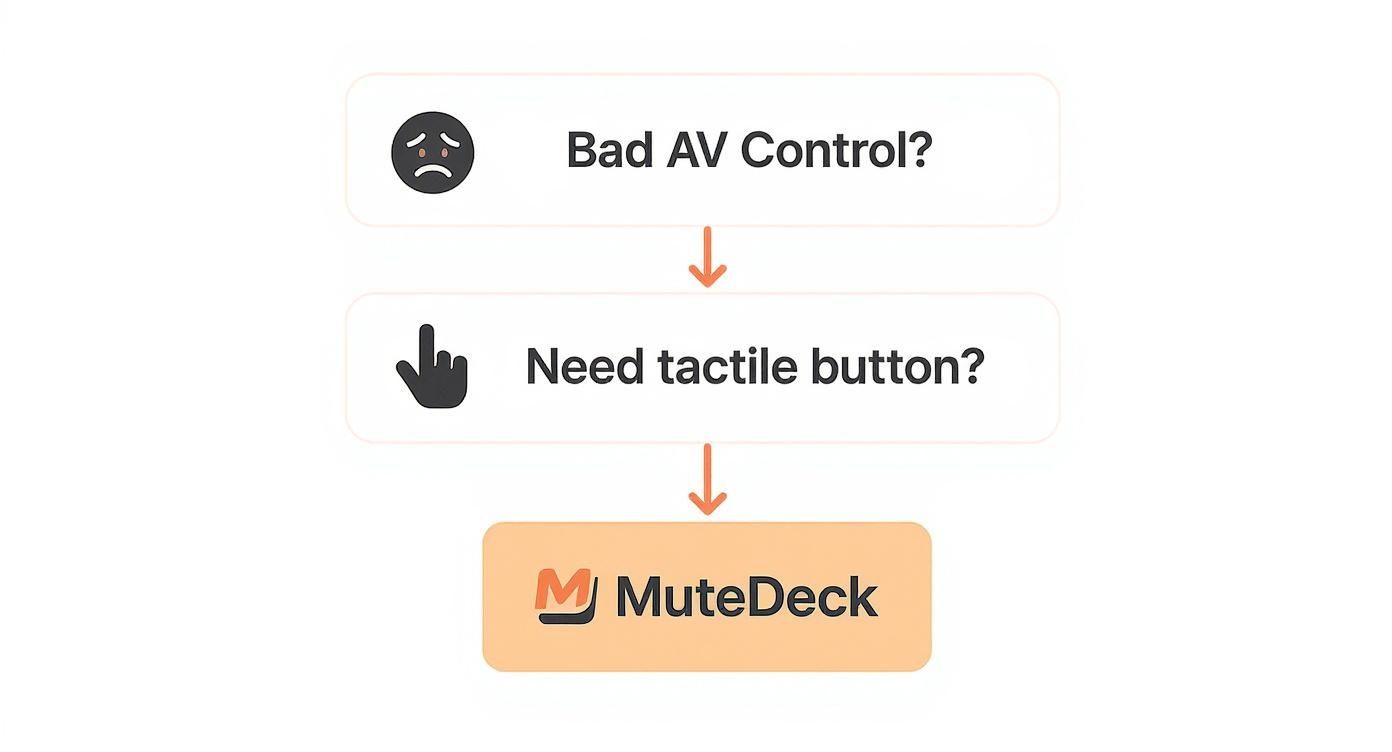
It really is that simple. If you need confident, physical control over your mic and camera, MuteDeck is the answer. By asking these kinds of practical questions, you’ll find a tool your team actually wants to use—and that’s the whole point.
# Got Questions? We've Got Answers
Switching to a new tool always brings up a few questions. It’s not just about features—it’s about figuring out how a new piece of software fits into your team’s daily rhythm. Here are some of the most common things people ask when picking a meeting management tool.
# How Do I Get My Team to Actually Use a New Tool?
Let's be real: getting people to change their habits is tough. The secret isn't a big, company-wide announcement. It's about finding a small, visible problem and solving it so well that everyone else wants in.
Start with a pilot group—a team that you know struggles with messy meetings or dropped action items. Their success becomes your best marketing material.
- Pick a specific pain point: Frame the experiment around a clear goal. Maybe it’s cutting meeting prep time by 25% or making sure 100% of action items get assigned.
- Show the proof: Don't just talk about improvements; document them. Use the results from your pilot group to show everyone else how much easier their own work could be.
Pro Tip: When you roll it out, frame it around individual benefits. Something like, "This means you'll spend less time writing recaps and more time doing the work you were actually hired for."
# What’s the Difference Between Meeting and Project Management Software?
It’s easy to mix these two up, but they’re built for completely different jobs. Think of it like a sprinter versus a marathon runner. Both are athletes, but they excel at different distances.
Project management tools like Asana (opens new window) or Trello (opens new window) are the marathon runners. They’re designed to manage work over weeks or months, tracking big-picture tasks, dependencies, and deadlines to get a project over the finish line.
Meeting management software is a sprinter. Its focus is razor-sharp: making the time you spend in a meeting as productive as possible. It’s all about collaborative agendas, real-time notes, and capturing the decisions and action items that come out of a conversation. Practical Example: During a meeting, you decide on three new marketing tasks. A good meeting tool lets you push those tasks directly into your Asana project board, bridging the gap between discussion and execution.
# Can a Free Tool Really Work for a Small Team?
Absolutely. For small teams, a free plan is often the best way to get started with more structured meetings. Most of the top platforms offer free tiers that are surprisingly powerful.
You’ll almost always get the essentials you need to make a real difference:
- Collaborative agendas
- Shared note-taking
- Basic task tracking
Practical Tip: A free tool is perfect for establishing the habit of using an agenda for every meeting. Once that behavior is ingrained, you can evaluate if you need the advanced features of a paid plan. The limits usually kick in around the number of users, access to fancy integrations, or creating custom templates. But for a team of 5 to 10 people just trying to bring some order to the chaos, a free plan has more than enough firepower.
Ready to stop fumbling for the mute button? MuteDeck gives you instant, physical control over your mic, camera, and calls on any platform. Run your meetings with confidence. Learn more and try it free at https://mutedeck.com (opens new window).