
# Can You Record a Zoom Meeting? An Actionable Guide
Yes, you can absolutely record a Zoom meeting. It’s a core feature, and honestly, one of the most useful things Zoom offers. Whether you need to document a client call, save a training session for new hires, or just keep a record for someone who couldn't make it, recording is built right in.
You've got two main ways to do it: saving the recording locally to your computer or saving it to the Zoom cloud.
# Understanding Your Zoom Recording Options
Recording meetings has become second nature for many of us. In fact, it's estimated that 46.5% of all meetings on Zoom are recorded. That’s a staggering amount of captured conversation, adding up to over 1.5 trillion minutes a year. And since 89% of Zoom usage is for business meetings, knowing how to record—and which method to use—is a critical skill.
Your two choices, local and cloud recording, serve different needs. The "right" one really just depends on what you plan to do with the video file after the meeting ends.
# Local vs. Cloud Recording
Local recording is exactly what it sounds like: the video and audio files save directly to your computer's hard drive. It's available for everyone, even on a free Zoom account. This is my go-to when I need the file right now for a quick edit or just for my own notes. There's no waiting for a link to process; the file is on your machine as soon as Zoom finishes converting it.
Cloud recording, on the other hand, is a perk for paid subscribers. It saves your meeting directly to your online Zoom account. This is, by far, the better option for sharing. Instead of wrestling with massive video files and trying to upload them somewhere, you just send a simple, password-protected link to your team. It's a lifesaver for distributed teams.
My rule of thumb: Use local recording for speed and personal access. Choose cloud recording for easy sharing and secure storage that doesn't eat up your own disk space.
Here's a quick table to break down the key differences at a glance, which should help you pick the right tool for the job.
# Zoom Local vs Cloud Recording At a Glance
| Feature | Local Recording | Cloud Recording |
|---|---|---|
| Availability | All users (Free & Paid) | Paid users only |
| Storage Location | Your computer's hard drive | Zoom's cloud server |
| Sharing | Manual (uploading large files) | Easy (share a link) |
| Accessibility | From your computer only | Anywhere with an internet connection |
| Extra Features | Basic video/audio files | Audio transcription, multiple layouts |
| Best For | Quick access, personal use | Team collaboration, easy sharing |
Ultimately, how you plan to use the recording should guide your choice. For a simple personal archive, local is fine. For anything involving a team, the cloud is almost always the smarter move.
Of course, a great recording starts with great audio and video. If you're looking to up your game, exploring Zoom-certified hardware solutions like the Yamaha UC CS-700 Video Sound Bar (opens new window) can make a huge difference in clarity. And since recording is just one part of running a great meeting, check out our other strategies in the ultimate guide to productive Zoom meetings (opens new window).
# How to Record a Meeting as the Host
As the host, you’re in the driver’s seat. Zoom puts the recording controls right at your fingertips, letting you start, pause, and stop from the main meeting window. You can save the file directly to your computer or send it up to the cloud.
The process is simple enough, but understanding the difference between the two methods will save you a ton of hassle later.
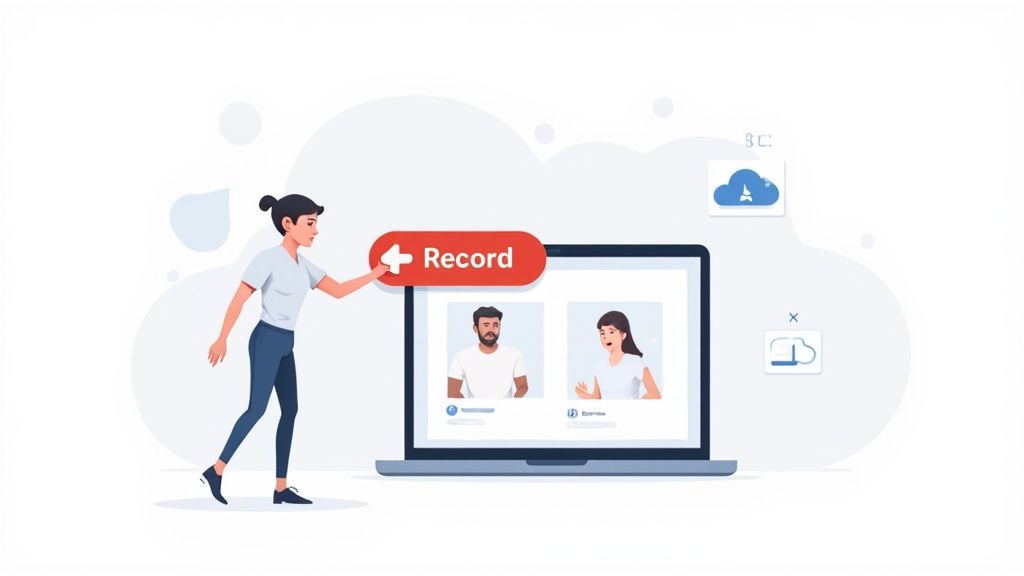
Let’s walk through how to handle both local and cloud recordings so you can capture exactly what you need and find it without digging around.
# Using Local Recording on Your Computer
Local recording is your fastest path from live meeting to video file. It's the perfect option when you just need a personal copy for your own archives or want to jump right into editing.
When you're ready, just hit the Record button on the Zoom toolbar at the bottom of your screen. If you have both local and cloud recording enabled, Zoom will ask you to choose. Just select “Record on this Computer.”
A quick pro-tip I’ve learned the hard way: before a long meeting, always check your available hard drive space. HD video files get big, fast. A one-hour meeting can easily take up 200-300 MB. The last thing you want is for a recording to cut out mid-session because you ran out of room.
Once the meeting ends, Zoom automatically gets to work converting the recording into usable files. This might take a few minutes, depending on how long the call was. When it’s finished, a folder containing your files will pop right up.
Inside, you’ll usually find three things:
- An MP4 file (the main video and audio)
- An M4A file (just the audio)
- A TXT file (a transcript of the chat, if there was any)
By default, Zoom tucks these into a "Zoom" folder inside your computer's Documents. If you’d rather save them somewhere else, you can change the destination in your Zoom desktop client's settings.
# Leveraging Cloud Recording for Easy Sharing
For anything collaborative, cloud recording is the way to go. The process starts out the same: you click Record and then select “Record to the Cloud.” The real magic happens after the meeting wraps up.
Instead of your computer doing all the heavy lifting, the recording is processed on Zoom's servers. You’ll get an email as soon as it’s ready to be viewed, shared, or downloaded. This is a total game-changer for anyone who has to distribute meeting notes.
Imagine you just wrapped a weekly sync, but a few key people were out. Instead of downloading a massive video file and wrestling with uploads to a shared drive, you can just:
- Log in to your Zoom web portal.
- Head over to the "Recordings" section.
- Find your meeting and click the "Share" button.
- Copy the link and send it off.
It’s an incredibly slick workflow. You can even slap a password on the link for extra security. It completely removes the friction of managing big files and lets you get important info to your team in seconds.
For those of us who spend a lot of time managing recordings and other meeting controls, adding a piece of hardware like an Elgato Stream Deck can make things even more seamless. If you want a more professional, tactile control center for your meetings, you can learn how to set up Zoom with a Stream Deck or Loupedeck (opens new window).
# Recording a Zoom Meeting as a Participant
So you're not the host, but you still need a recording of the meeting. The big question is: can you record a Zoom meeting if you’re just a participant?
The short answer is yes. But it comes with a massive asterisk: you need the host's permission.
This isn't just a technical limitation; it’s about basic professional courtesy and, depending on where you are, a legal requirement. The record button simply won't show up for you unless the host flips the switch on their end and gives you access.
# How to Professionally Ask for Recording Permission
Getting permission is usually easy, but how you ask matters. Your best move depends on when you realize you need a copy of the call.
- Before the Meeting: This is always the best approach. If you know you'll need to review an upcoming client demo or project briefing, just send a quick email to the host ahead of time. It shows you're prepared and respect their role.
- During the Meeting: Had a sudden realization mid-call? Use Zoom's private chat. Send a direct message to the host explaining why you'd like a recording. This is way better than interrupting the conversation for everyone else.
A simple, polite message usually does the trick. Something like, "Hey [Host's Name], would you mind if I recorded this section for my notes?" is professional and clear.
Once the host gives you the green light, a Record button will magically appear in your control bar. Clicking it will kick off a local recording, which saves the file directly to your computer. Just know that you won't get the option for a cloud recording—that's a superpower reserved for the host.
# A Quick Word on Third-Party Recorders
It might feel tempting to just fire up a third-party screen recording tool and bypass the whole permission step. While technically possible, this is a terrible idea.
Recording a conversation without everyone's knowledge and consent is a fast way to break trust. It can also land you in legal hot water depending on local privacy laws. Always, always ask first.
Besides, using external software means you miss out on Zoom’s native multi-stream output, which can lead to lower-quality video and audio. Plus, you lose the built-in "Recording" notification that keeps everything transparent. Trying to get around that is unprofessional and instantly undermines trust with your team or clients.
The bottom line is simple: as a participant, recording is a privilege, not a right. Stick to the proper channels to keep things professional and respectful for everyone involved.
# Going Deeper: Mastering Recording Permissions and Settings
Once you've got the hang of hitting record in a meeting, it's time to level up. The real power isn't in the in-meeting controls; it's tucked away in the Zoom web portal. This is where you go from manually capturing calls to building an automated, compliant, and rock-solid recording system.
Think of it as setting the rules of the road before the meeting even starts. For anyone running frequent or high-stakes calls, these backend settings are less of a "nice-to-have" and more of an essential part of your workflow. It’s how you put your recording strategy on autopilot.
# Set It and Forget It with Automatic Recording
One of the best features in the Zoom settings is automatic recording. Flip this switch, and every single meeting you host will start recording the second it begins. No more "oops, I forgot to hit record" moments.
This is a total lifesaver in so many situations. Imagine a corporate training team that needs every new-hire session documented for compliance. Or a project manager who wants a full archive of weekly syncs without relying on memory. Manually starting the recording every time is just asking for human error.
Just head to Settings > Recording in your Zoom web portal to turn it on. You can even decide if you want those recordings saved locally to your computer or sent straight to the cloud.
# Build Trust with Recording Consent
In today's world, being transparent about recording isn't just good practice—it's non-negotiable. Zoom has a fantastic tool for this: the recording consent disclaimer.
When you activate this, anyone joining your meeting gets a pop-up telling them the session is being recorded. They have to actively click to agree before they can even get in. This one simple step changes the notification from a passive little red dot into an active, documented act of consent.
**For example, an HR department conducting remote interviews can enable this to create a clear record that every candidate knew about and agreed to the recording. It’s a simple way to build a transparent and legally sound hiring process.
This isn't just about covering your bases; it's about building trust by giving people agency and being upfront about your practices.
# Delegate and Manage Team Permissions
If you're a Zoom admin for your company, you don't have to be the gatekeeper for everything. The web portal lets you grant recording permissions to other licensed users on your account, empowering your team while you keep overall control.
For many businesses, Zoom recordings have become a critical tool for legal and compliance reasons. With over 504,900 business customers, many of whom are in regulated fields, the need for proper documentation is huge. It's telling that companies with over 1,000 employees are 3.5 times more likely to use cloud recording for secure, compliant storage. You can find more data on how businesses use Zoom at affinco.com (opens new window).
By tweaking these backend settings, you can let your team members record their own meetings without needing your help every time. You can also lock certain settings at the account or group level to make sure everyone is following company policy, no exceptions.
# How to Manage and Share Your Zoom Recordings
So you've hit "End Meeting." But your job isn't quite done. What you do next with that recording is the difference between a valuable asset and a file that gets lost in a digital black hole.
For local recordings—the ones saved directly to your computer—a little organization goes a long way. Don't just leave them with a generic name like zoom_0.mp4. Trust me, you'll never find it again. Create a simple, consistent naming convention that makes sense for how you work.
Think about how you’d search for it in three months. A good format might be ProjectName-MeetingType-Date.mp4.
Here are a few real-world examples:
Odyssey-ClientKickoff-2024-10-28.mp4Q4-SalesTraining-2024-11-15.mp4WeeklySync-TeamBravo-2024-11-18.mp4
This tiny habit will save you a world of frustration down the road.
# Unlocking Cloud Sharing and AI Features
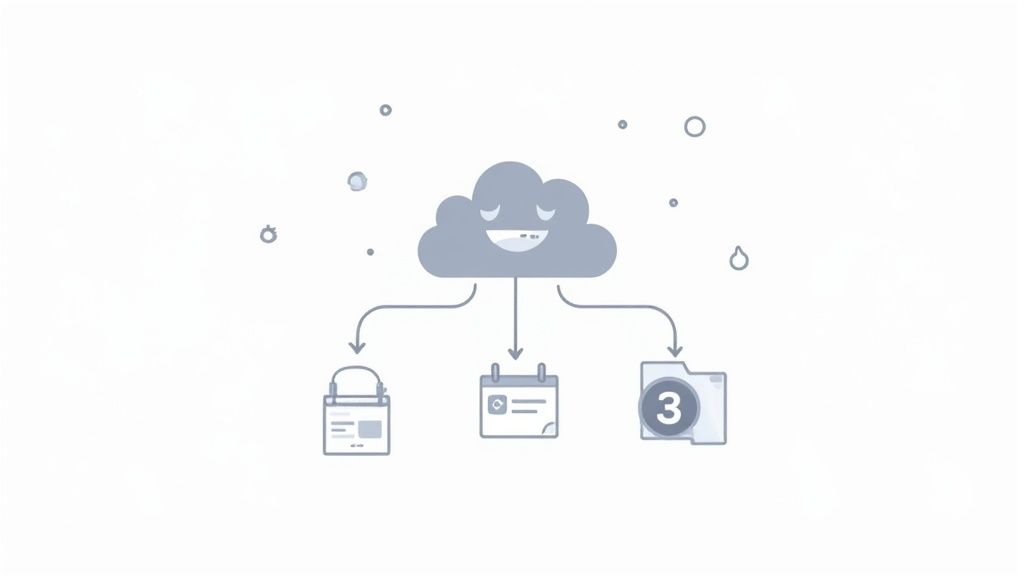
This is where things get really powerful. Cloud recordings, which you'll find in your Zoom web portal, offer far more elegant options for sharing and management. Instead of trying to email a massive video file, you can just generate a shareable link.
And with that link, you get a ton of control. From the sharing settings, you can:
- Require a password for an extra layer of security.
- Set an expiration date on the link—perfect for time-sensitive reviews.
- Allow viewers to download the file, or keep it as view-only.
These aren't just niche features; they're becoming essential. The boom in meeting recordings has fueled a need for smarter storage, and Zoom now reports that over 510,000 accounts use its AI-powered tools for things like automated transcription and analytics. This stuff helps teams quickly find key moments without rewatching hours of video. You can dig into more stats on Zoom's AI adoption and user trends at searchlogistics.com (opens new window).
Practical Tip: When you're sharing a long recording, like a two-hour workshop, use Zoom's AI-powered Smart Chapters and highlights. These tools automatically generate a table of contents and a short summary, letting people jump straight to what they need.
It turns a long, intimidating video into something genuinely useful. For a deeper dive into these powerful features, check out our guide on getting the most from Zoom cloud recording (opens new window). When you manage your cloud recordings well, they stop being just video files and become searchable, intelligent assets for your whole team.
# Got Questions About Recording Zoom Meetings?
Let's clear up some of the common questions people have when they hit that record button. Think of this as your quick-reference guide for handling those "what if" scenarios in Zoom.
# Does Zoom Tell People It's Being Recorded?
Yes, absolutely. This is one of Zoom’s most important, non-negotiable features. The moment you start recording, every single person in the meeting gets a heads-up in two ways:
- An automated voice announces, "This meeting is being recorded."
- A clear "Recording" icon pops up at the top of their screen.
This is a built-in privacy guardrail and cannot be turned off by the host. It's designed to make sure everyone is aware and consents to being on the record, which is a huge part of building trust.
# How Long Can I Keep Recordings in the Zoom Cloud?
Cloud storage is a perk of a paid Zoom account. If you're on a free plan, you won't have any cloud storage—you'll have to record locally to your computer.
For those with a Pro, Business, or Enterprise plan, your storage limit depends entirely on your subscription tier. You can always buy more space if you need it. Plus, account admins have the power to set up automatic deletion rules to keep storage from overflowing and to stay compliant with company data policies.
Practical Tip: Set up an automatic deletion rule for routine recordings. For example, you could have all "Weekly Sync" recordings automatically deleted after 30 days to keep your cloud storage from filling up with files that are no longer relevant.
# Can I Record Breakout Rooms?
This is a tricky one. The main session recording follows the main room only; it won't capture what's happening in the individual breakout rooms.
But there is a workaround. The host can give one participant in each breakout room permission to start their own local recording. That recording saves directly to that person's computer, not to the host’s cloud account. It's a bit decentralized, but it gets the job done.
# Where Did My Local Zoom Recording Go?
Don't worry, it's not lost! By default, Zoom neatly tucks away your local recordings in a "Zoom" folder right inside your computer's Documents folder. Each meeting gets its own subfolder, usually named with the date and topic to keep things organized.
If you'd rather save them to an external drive or a different spot, that's easy to change. Just head into your Zoom desktop client's settings and look for the "Recording" tab to set a new destination.
For more deep dives into meeting ethics, best practices, and using tech to your advantage, I'd recommend checking out resources like the Parakeet AI Blog (opens new window).
Tired of fumbling for the record button in the middle of a presentation? MuteDeck gives you a dedicated, physical button for recording and all your other meeting controls. No more hunting for buttons in Zoom, Teams, or Google Meet—just one tap on your Stream Deck or other device, and you’re in control. See how it works at https://mutedeck.com (opens new window).